Get Value
Description
This action is used to get attribute values from a specific element.
For example:
- height/width
- inner text
- center coordinates
- element id
- and more
Why is it helpful?
It lets you check whether an element is present on a page. Used for:
- Checking authorization
For instance, when a user is logged into the app, a button to open the personal account or a logout icon appears. If either of these exists, you're good—you're logged in. - Finding error messages
Useful when solving captchas. If a captcha is entered incorrectly, often a new element with an error message pops up. In this case, you'll need to try solving the captcha again.
How to add it to your project
Use the canvas context menu:
Add Action → Android → Get Value
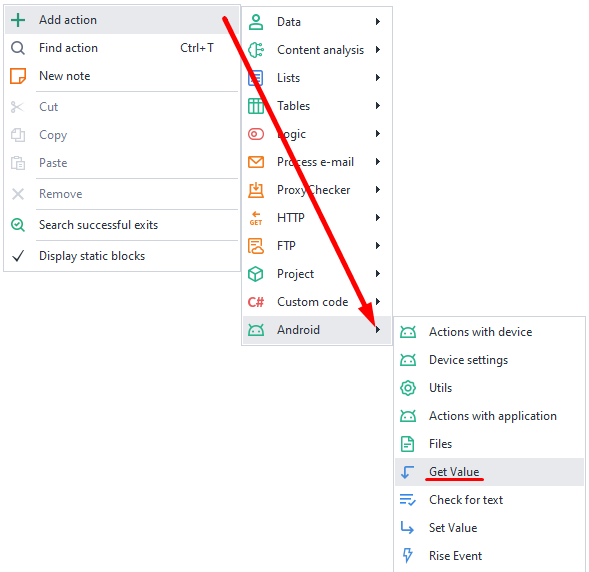
Select an element to get a value from
Any shortcut on the main screen can be an element, for example, Play Market. Right-click on it → To the Action Designer.
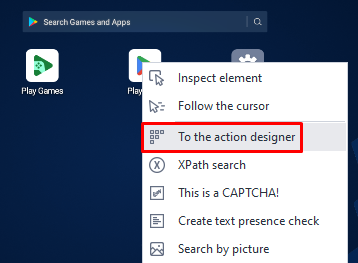
After that, the Action Designer opens at the bottom under the browser window.

The search data will be picked so that only one element remains in the result.
Explanation of points
1. In Action, choose Get.
2. Coordinates are stored in the bounds attribute.
3. The first brackets [] are the top-left corner coordinates, the second—bottom-right corner.
Step-by-step:
- Choose bounds from the Attribute dropdown.
- Coordinates will appear in the Value field (e.g.,
[530,120][750,253]). - Test it before adding the action to the project—click Test.
- It's recommended to add a comment to the action for clarity.
- Finish by clicking Add to project.
Configuring the action
"Main" tab
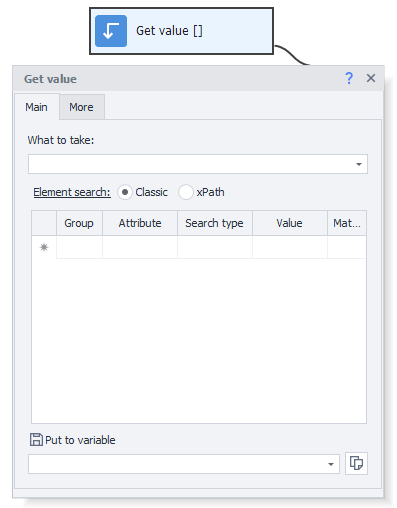
What to get
When you click, a list of attributes you can read appears.

Searching for the element
Set the necessary parameters to find the right item.
"More" tab

Wait before executing
Set a range FROM and TO (in seconds)—a random wait time will be selected from this range before executing.
Wait for the element no longer than
If the element doesn't appear within the specified time (in seconds), the action will end with an error.
Usage example
Let's look at how this action works using the Google Play app. Suppose you want to check if a user is logged in.
First, launch the app one of two ways:
- With the Run Event action
- With App Actions. Open App
| We'll use the second method: |
|---|
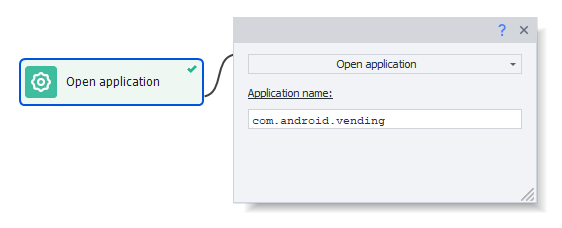 |
| You can find out the app name through the Installed Apps window. |
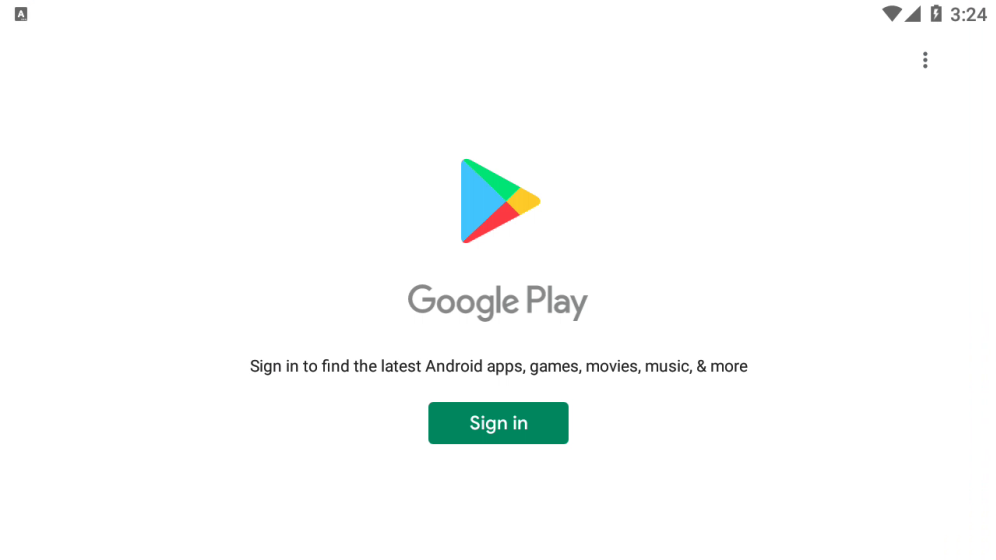
If the user isn't logged in, you'll see a window with a Sign in button.
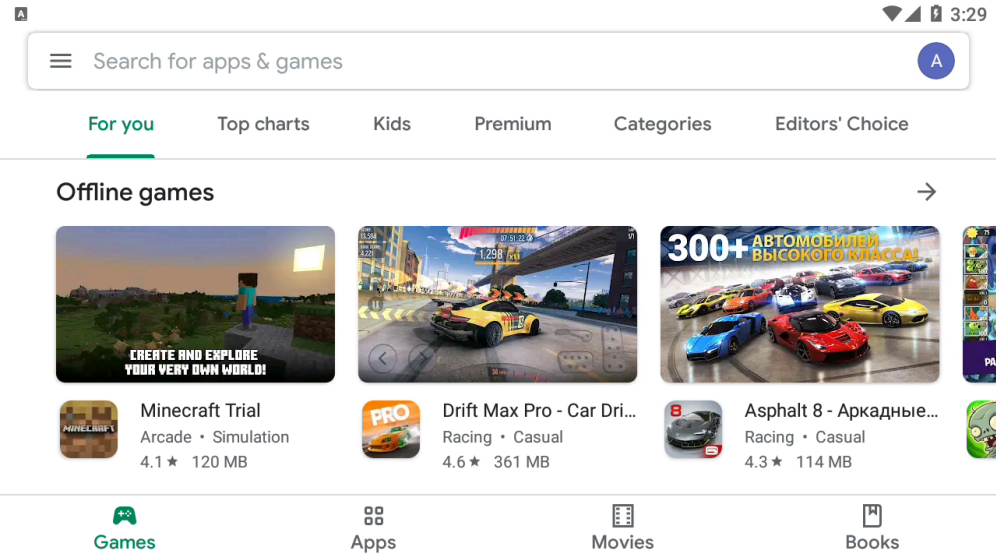
| Not logged in | Logged in |
|---|---|
 |  |
App language depends on the virtual machine's language.
Let's look for the Sign in button using two criteria at once:
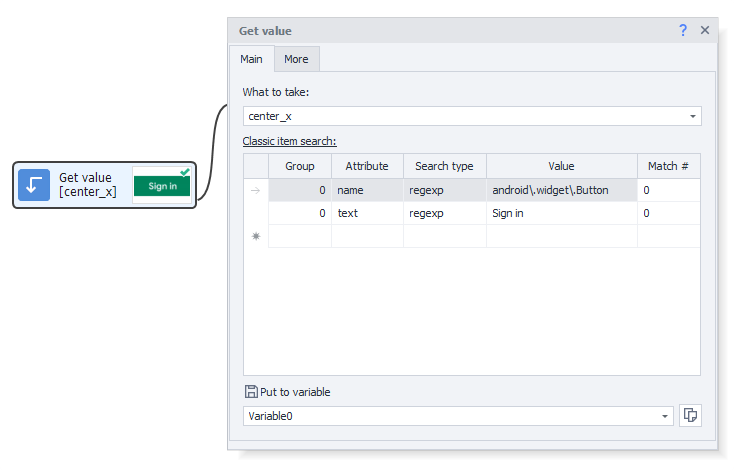
If the button is found and the attribute value is retrieved, that means the user isn't logged in.
But if the action can't find the button, the user is logged in.