Actions with application (Enterprise)
How to add to your project?
Right-click → Add action → Android → App Actions
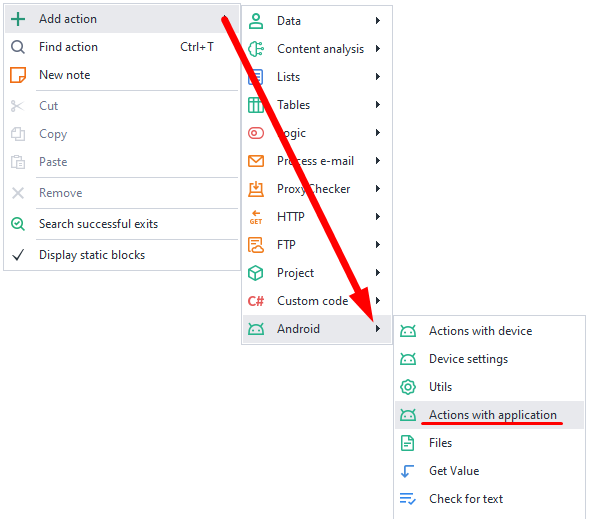
Available actions
Install application

This action lets you install an app from an APK file. Supported formats: .xapk, .apkm, .apks
Uninstall application

This action removes an installed app by its name, which you can find using the Installed Apps tool.
Open application
Lets you launch an app that's already installed.

- App name. You can find it using the Installed Apps tool.
- App activity. Lets you open a specific window of the app right away. You can find this value by checking the app's dump:
dumpsys package com.package_name | grep -i activity.
Open URL
Lets you open a web page in a browser.

- URL. This is where you enter the web page address you want to open.
- App name. Put in the name of the app that can open links. You can find it using the Installed Apps tool. If you leave it blank, the page will open in the default browser.
Close application

Closes an app (same as the adb shell am force-stop com.package command).
Application cleanup

This action wipes all user data from the app. If you check Clear cache only, only the cache will be deleted, and everything else stays.
Save application's data
This function lets you save all app data (kind of like saving a profile in ZennoPoster).

Available options:
- App name. You can find it using the Installed Apps tool.
- Path to archive file. Enter the path where you want to save the archived app data (archive format is tar.gz).
Before saving the data, it's best to close the app using the Keyboard Emulation action with this text: {AndroidKeys.HOME}. This emulates pressing the HOME button.
Why close the app before saving data?
If the app is open during data saving, some information may be in RAM, not in the files. In this case, those data won't be saved. Also, you shouldn't use the Close app action for this because it kills the process and you might lose data.
Restore application's data

This lets you load app data saved using the previous action (Save app data).
Available options:
- App name. You can find it using the Installed Apps tool.
- Path to archive file. Enter the path to the archive with your app data.
The app must be installed on the device but NOT running when restoring data!
Get APK of the application

This action lets you get the installer file of your app in .apk or .apks format. Later, you can install the app with the Install APK action.
Get cookies from the app

This action gets cookies from apps with web content, returned in JSON format. You can then use the JSON and XML Processing action to read these data.
Get notifications

This action fetches notifications from the app from the notification drawer (top system bar) in JSON format. You can then use the JSON and XML Processing action to read these data.
Clear notifications

This feature removes all accumulated notifications from the notification bar.
Name of the active application

This action lets you get the name of the app that is currently active and in the foreground.
Get application list

This action lets you get the names of all installed apps and save them in a list.
App filter options:
- All. All apps installed on the device.
- System. Pre-installed apps that you generally can't uninstall, only hide.
- User. Apps you installed yourself.
Application already installed

This function checks whether an app is on the device. If it's missing, it'll be treated as an error and the workflow will go through the red branch.
Get accounts
Returns the accounts added on the device in JSON.
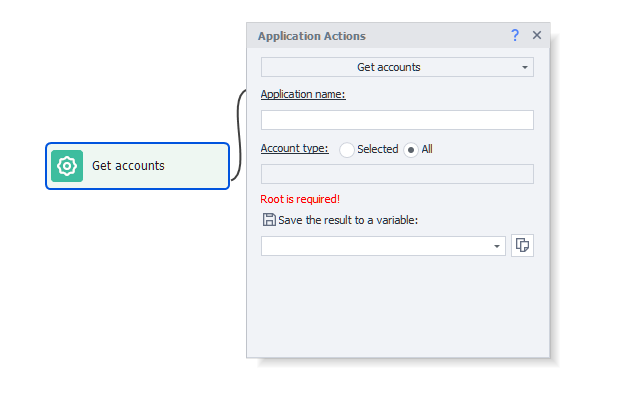
Available parameters:
- Application name. The app the accounts are asked from. The field is required. You can find the name using the Installed Apps tool.
- Account type. Selected - accounts of the given type only, e.g.
com.google. All - accounts of any type. - Save the result to a variable. Receives a JSON array: name, type, password and metadata for every account. The metadata from this result is what the Add account action expects.
Add account
Adds an account to the device.
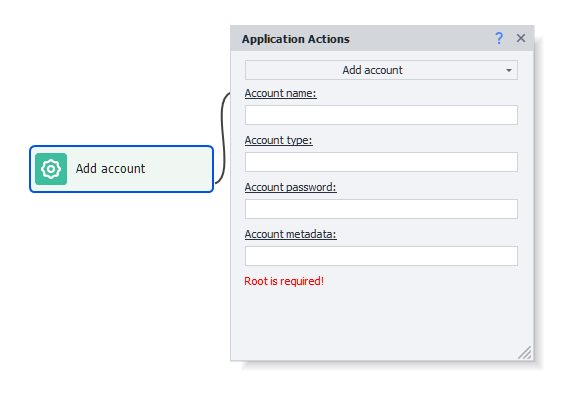
Available parameters:
- Account name. Typically an email address.
- Account type. For example
com.google. - Account password. Goes in encrypted, exactly as the Get accounts action returns it - a plain-text password will not do. An empty field means no password is set.
- Account metadata. The extra data of the account exactly as the Get accounts action returned it: that is what carries the account, authorisation and all, to another device. Arbitrary text or your own JSON will not do.
Remove account
Removes an account from the device.
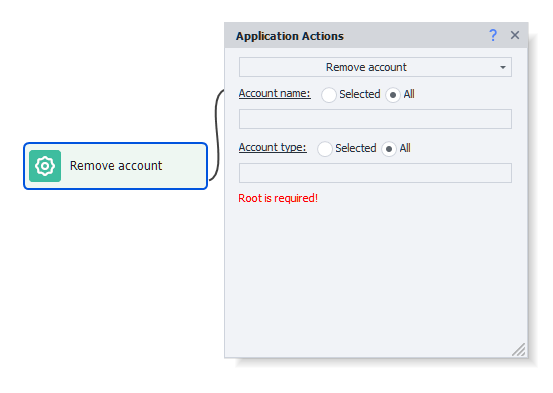
Available parameters:
- Account name. Selected - one account is removed. All - every account of the chosen type is removed.
- Account type. Selected - accounts of the given type only. All - accounts of any type.