Pause
🔗 Original page — Source for this material
Description
This action stops the project for a specified period of time, measured in seconds.
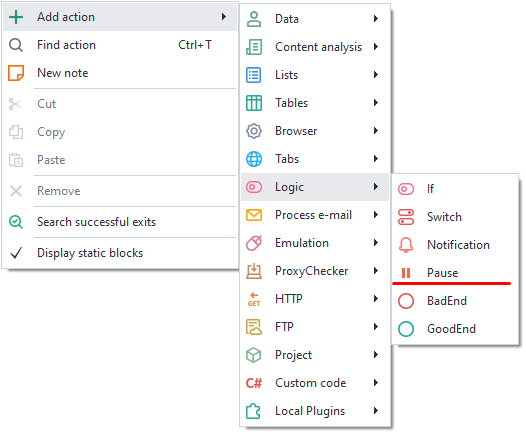
How do I add this action to a project?
Through the context menu Add Action → Logic → Pause
Or you can use the ❗→ smart search.
What is this used for?
- To wait for a website to fully load
- To simulate human behavior on a site by adding random pauses
- To set a time gap between actions
How do I work with this action?
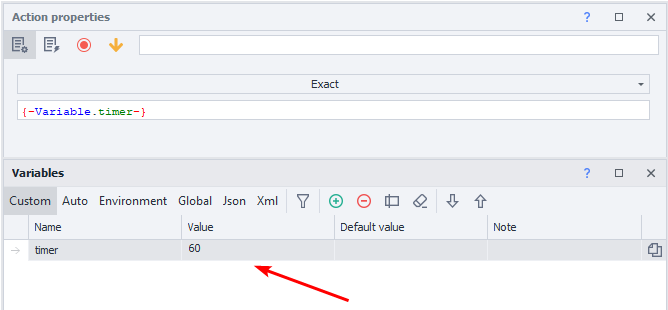
The value is set in seconds. If you use variables, the value must be numeric.
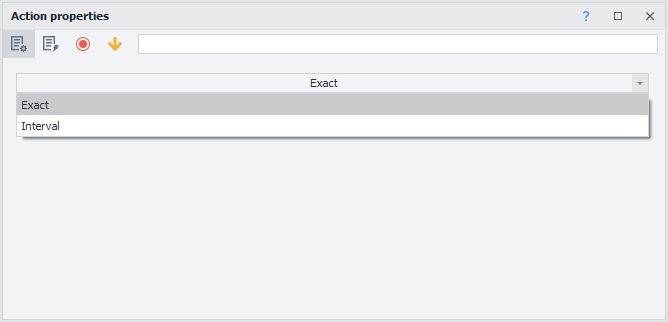
Exact
The project will pause for the specified number of seconds. You can enter the value directly or use a variable with a numeric value.
Interval
Specify a pause within the given numeric range; you can use variables.
- From — minimum time in seconds.
- To — the maximum pause in seconds, EXCLUSIVE.
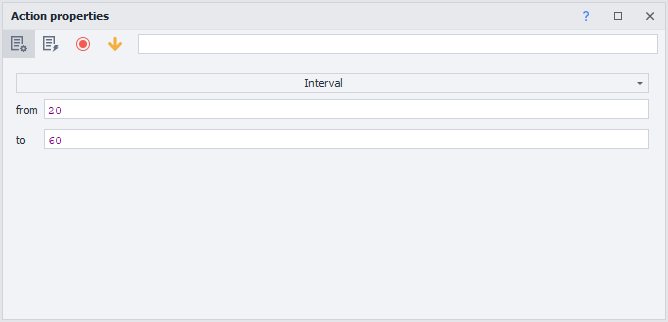
The project will wait for an amount of time randomly chosen from the range of 20 to 59 seconds.
Example usage
Let’s say you need to perform several similar actions on a website. To keep them from looking too robotic because of how quickly they run, we recommend adding random pauses between the actions.
It would look like this:
- Load the resource
- Perform the necessary actions
- Set a pause in the range
- Perform actions
By adding pauses between your actions, the website will see you as a “real” user, and not a bot.