Advantages of the ProjectMaker 7 Interface
🔗 Original Page — Source of this material
The ProjectMaker 7 interface meets the highest standards for modern software designed for project creation and development.
You can find setup instructions in section “3. Customization”
3 qualities of the ProjectMaker 7 interface:
1. Modern Look
Minimalism, clarity, and clean shapes make the interface accessible to any user without additional training.
Bright, easily recognizable buttons, grouped where you need them, make navigating the program quick and intuitive. Clear icon images help you understand the purpose of menu items.
2. Functionality
2.1. Main Menu
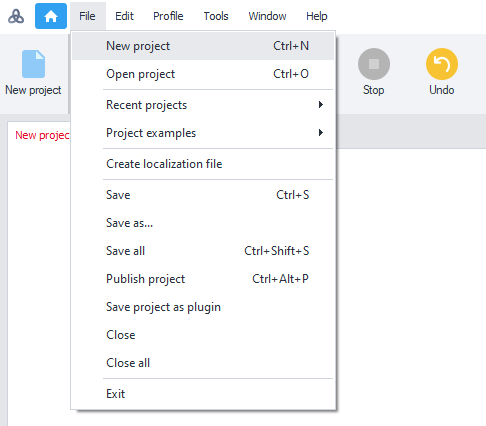
All program features are available through the main menu—a classic interface users have known since early versions of Windows. This is now the standard for today’s project development studios.
2.2. Toolbar
In addition to the classic menu, there’s a toolbar you can customize as you wish—choose the look, order, and which buttons appear!

2.3. Tool Windows
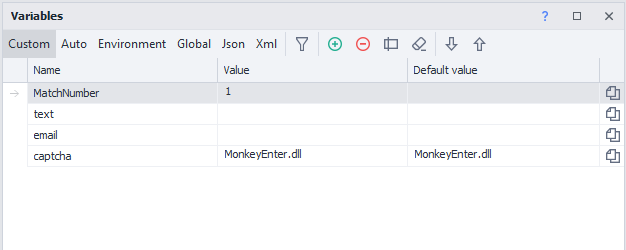
Main and supporting windows—like “Project,” “Browser,” “Action Properties,” “Execution Log,” and others—have a dedicated and familiar look for functional tool windows.
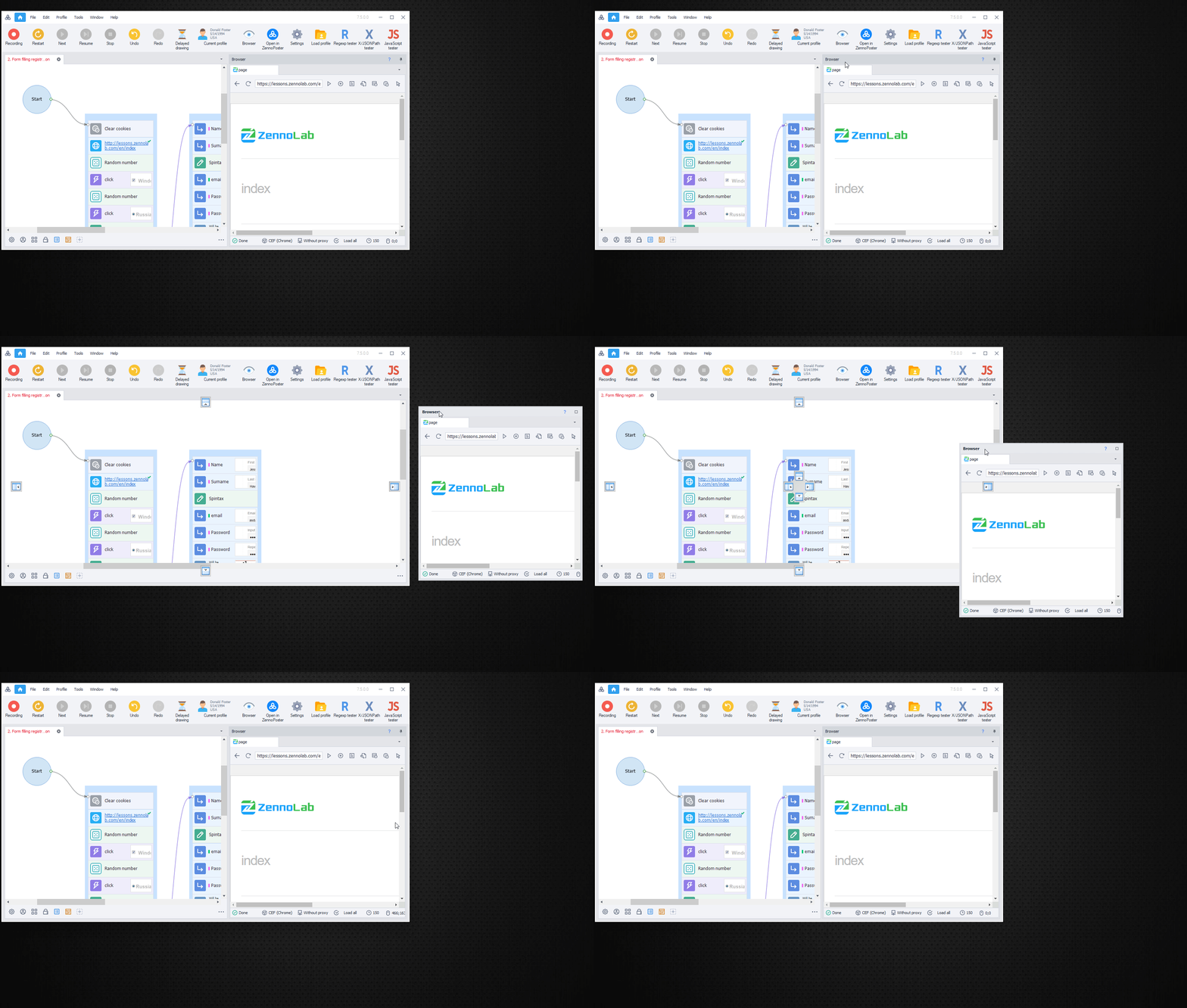
2.4. Using 2 Monitors
In ProjectMaker 7, you can move any tool window—even the browser—onto a different monitor whenever you’d like.
2.5. Smart Action Bar (Toolbox for blocks)
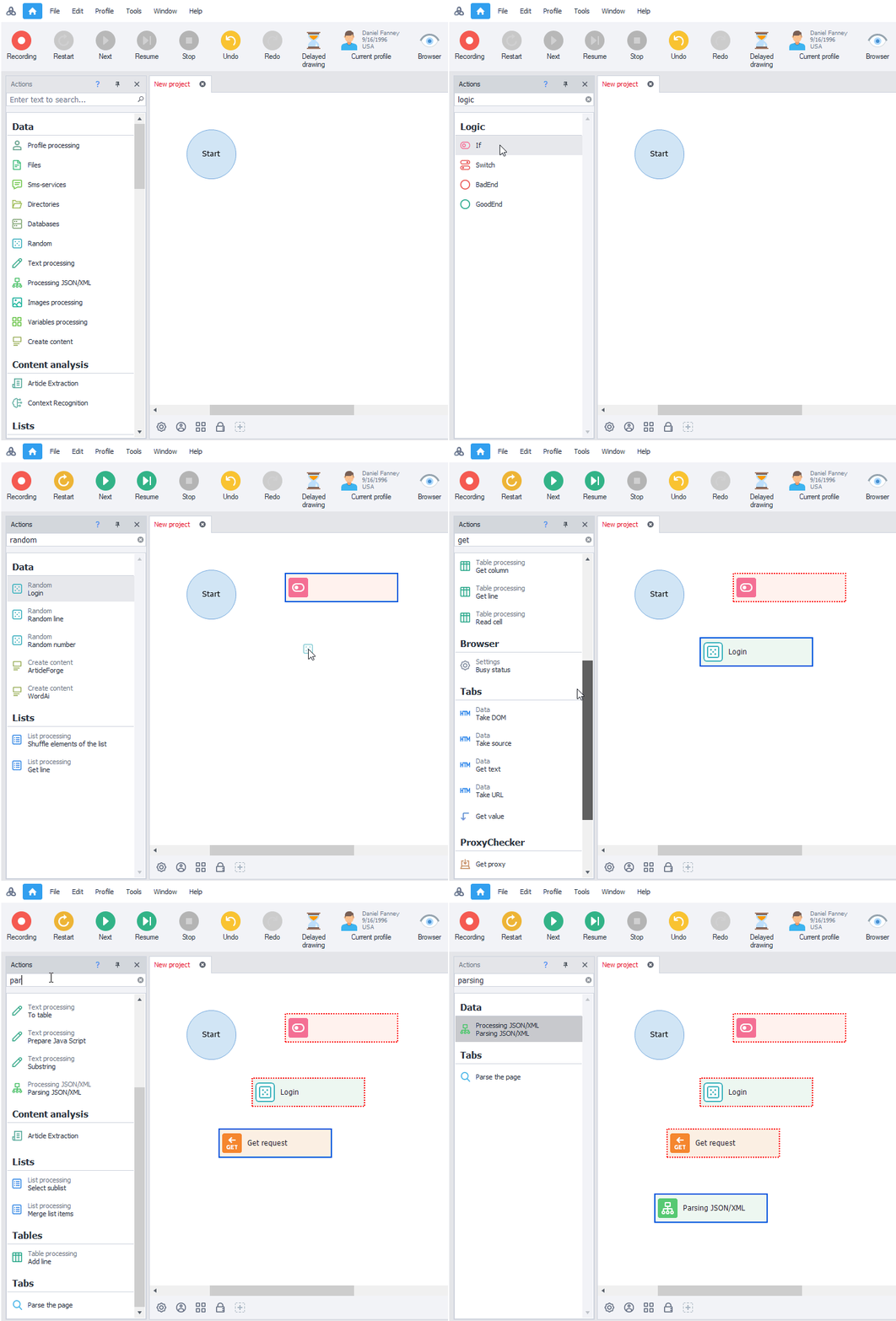
In ProjectMaker 7, you can use the Action Panel wherever you want:
- In “hide browser” mode (Advanced Editor Mode in ZP5)
- In “show browser” mode (Recording and Debugging Mode in ZP5)
- Hide and call up the panel quickly with the Ctrl + T hotkey
Smart Action Search
Now you no longer need to remember where an action (block) was located or what it was called—the new Action Panel features truly “smart search.”
2.6. Quick navigation in the project
“Where does this line go?”
ProjectMaker 7 can answer that! Now, when you hover over a node connection point, you’ll see a preview of the action the line leads to.
Take a look at how this works:
3. Customization (Personalize to Your Taste)
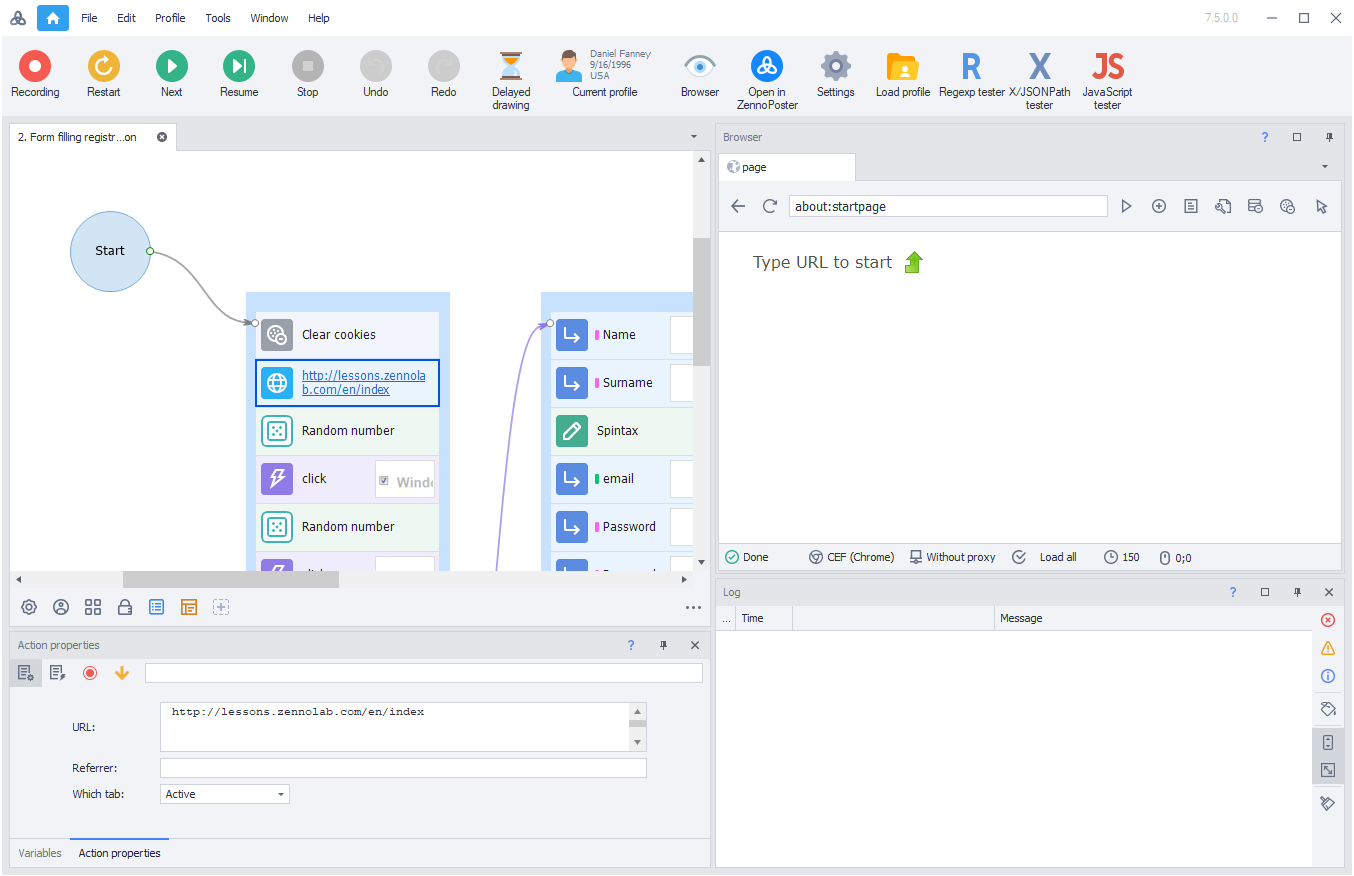
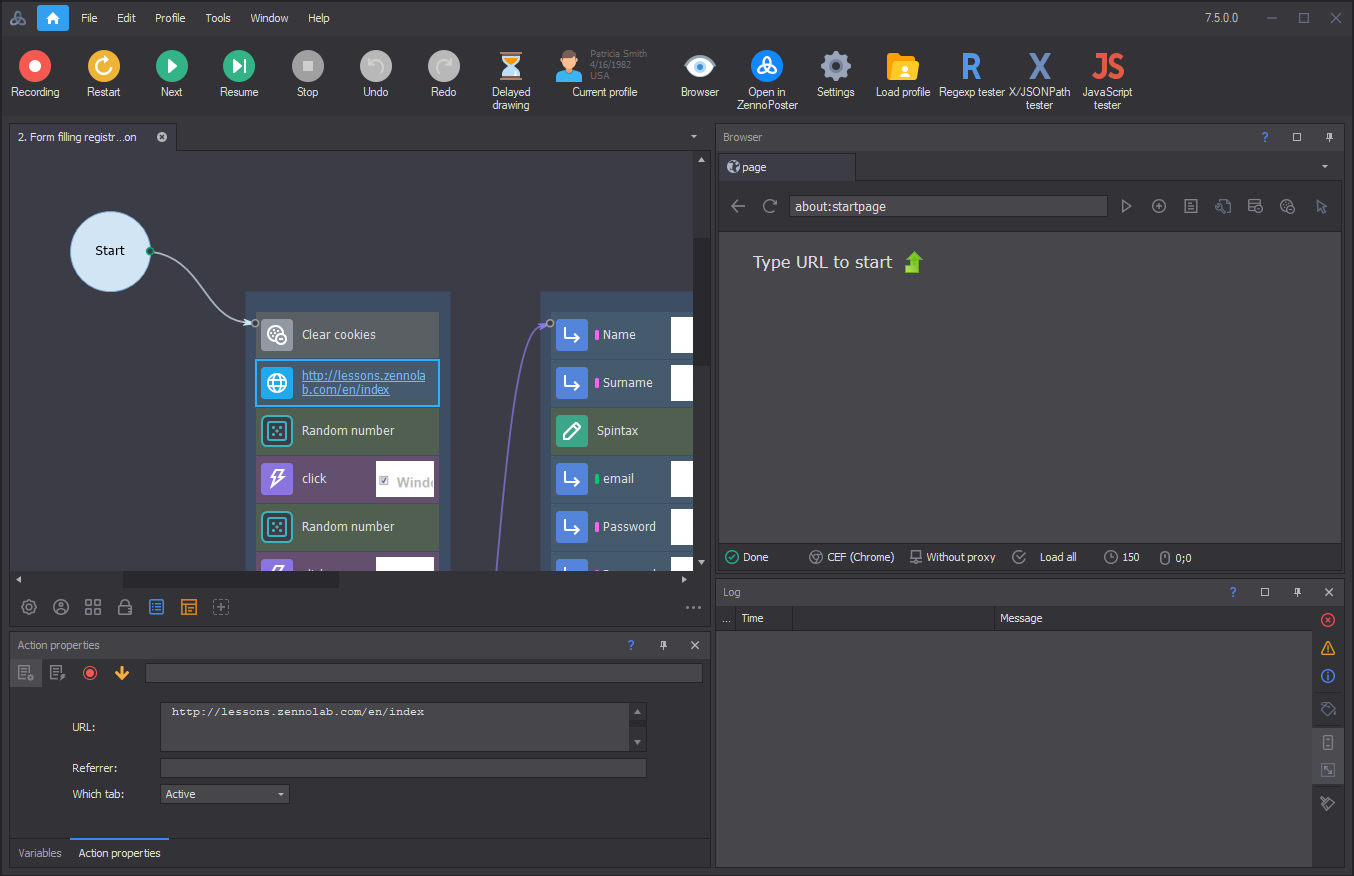
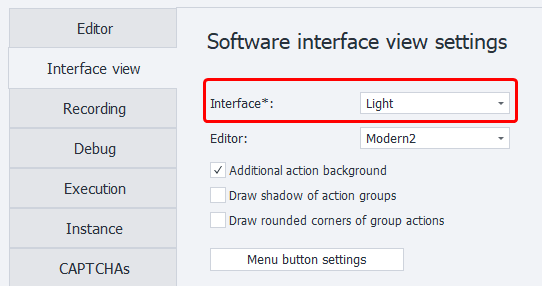
3.1. Interface Theme
The light theme is great for those who prefer the classic program look. The dark theme has become very popular among some users; it’s perfect if you like something a bit different, or if you work at night and want to reduce eye strain.
How to set up
Edit → Settings:
3.2. Toolbar Customization
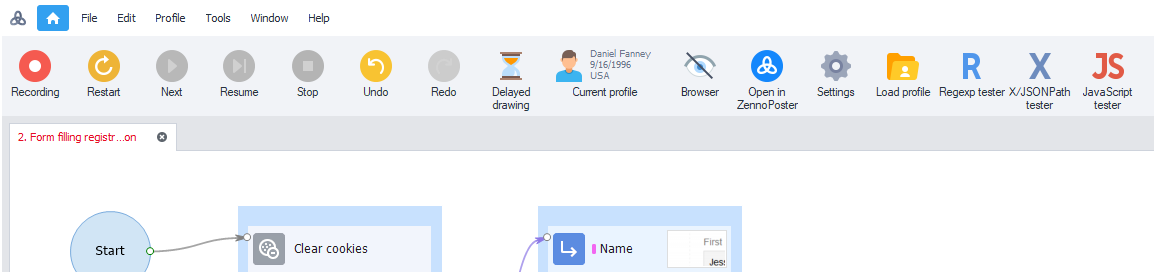
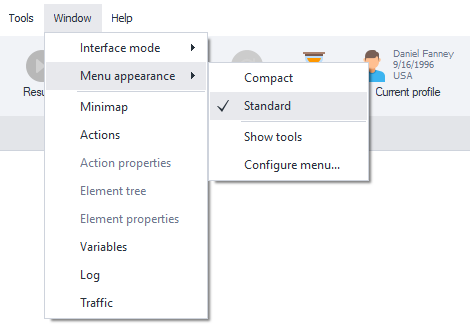
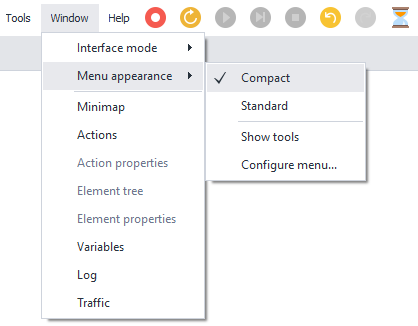
There are 3 types of toolbars: standard, compact, and super compact.
3.2.1. Standard View
Designed for large monitors (full hd, 2K and higher):
How to set up
3.2.2. Compact
Perfect for laptop screens, or for those who want to save screen space.

How to set up
3.2.3. Super Compact
You can even remove the classic menu items:
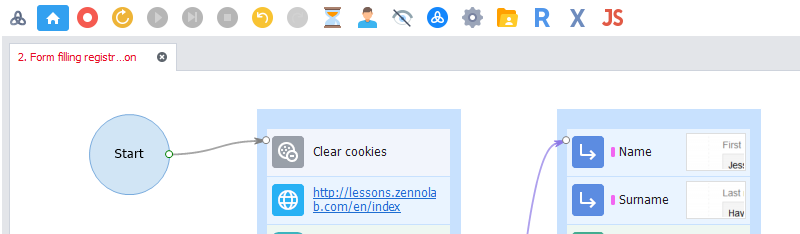
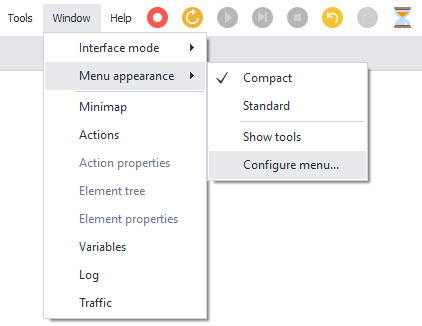
How to set up
To do this, open menu settings:
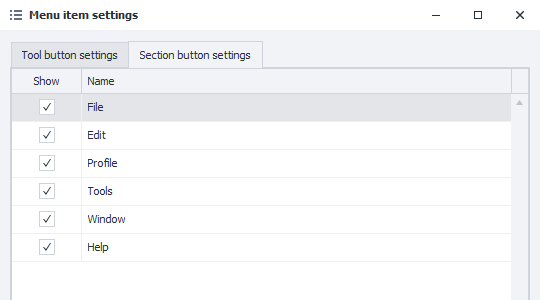
On the right tab you can customize the buttons for showing the main menu:
3.2.4. Fully Personalized Toolbar
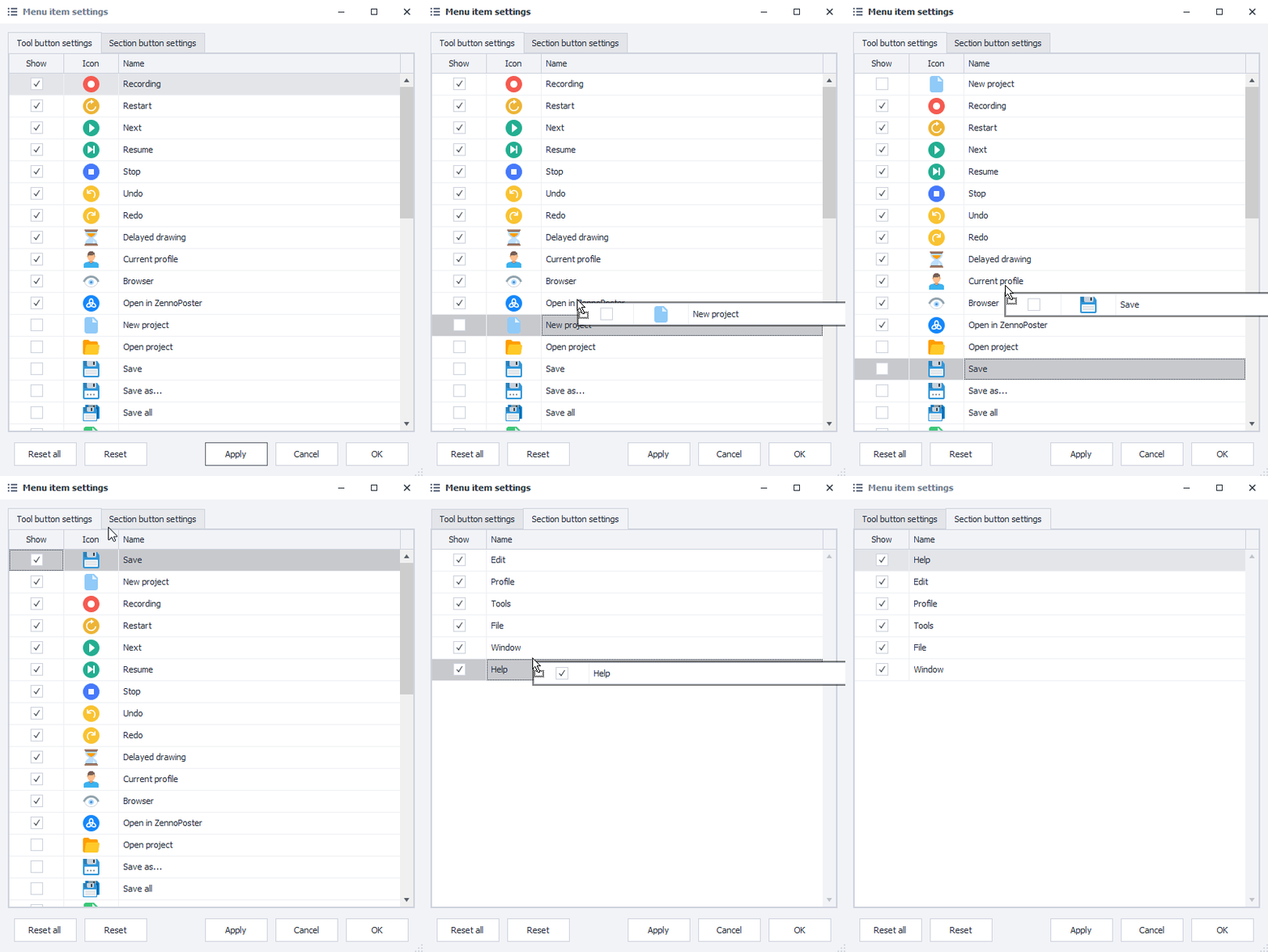
You can also open the menu settings to fully personalize your toolbar:
Here you can set up any buttons on the panel, and their order—just drag and drop items with your mouse:
3.3. Tool Window Management
Each tool window can be in 4 states:
- Hidden
- Shown and pinned to the main window
- Shown and auto-hidden to the main window
- Shown separately from the main window
In addition, action settings can also be in a special fifth state:
- Shown in the editor window.
3.4. Project Theme
The project theme controls how your project looks. For ZennoPoster 7, we’ve developed a completely new, modern theme that meets requirements for contrast, visibility of visuals, and readability—while staying easy on your eyes during long work sessions. But if you want the look of version 5, just pick the classic style.
The new ProjectMaker lets you choose from several project themes to match your taste. Our recommended themes:
3.4.1. Modern (Modern2 + extra background for actions)
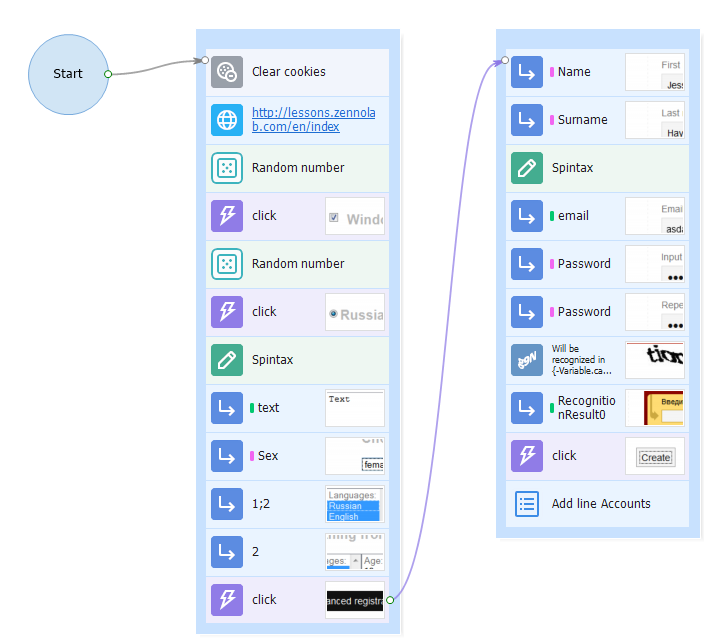
How to enable
Edit → Settings:
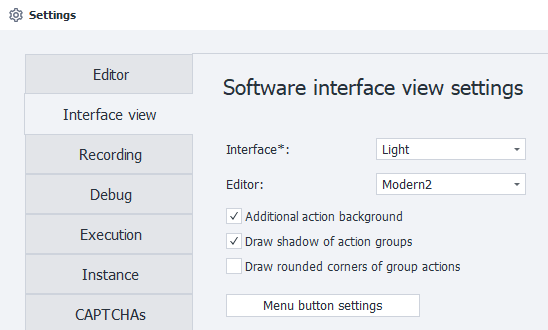
3.4.2. Classic
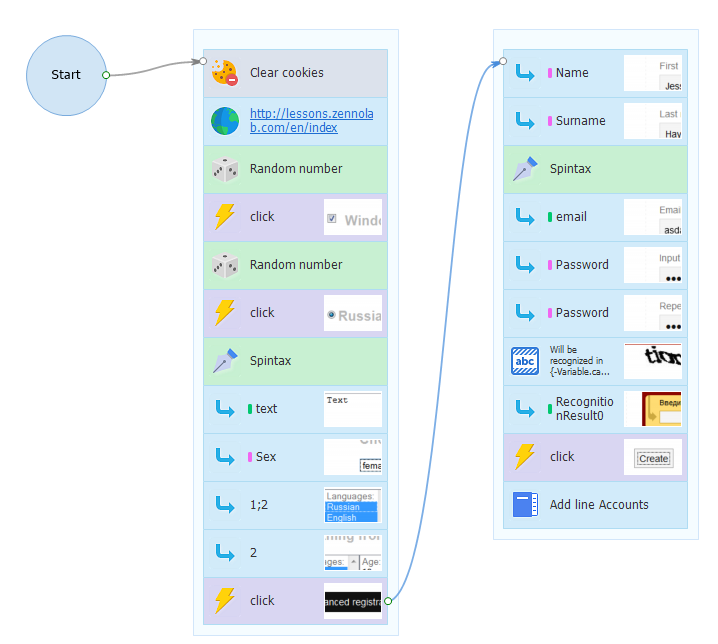
How to enable
Edit → Settings:
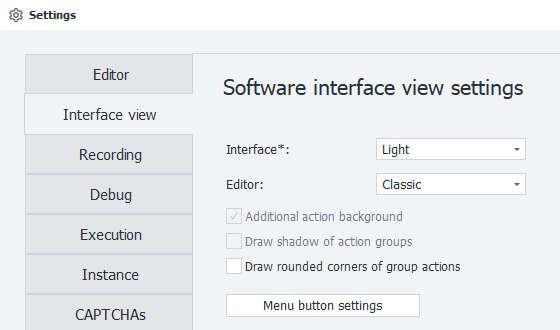
3.5. Customizing the Appearance of Project Elements
On top of everything else, ProjectMaker 7 gives you even more ways to customize the look of project elements.
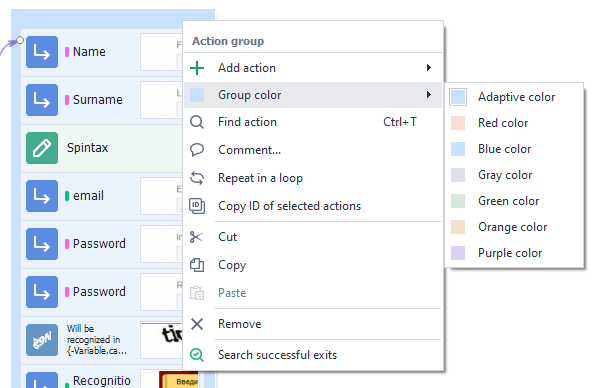
3.5.1. Setting Group Colors
Right-click the group:
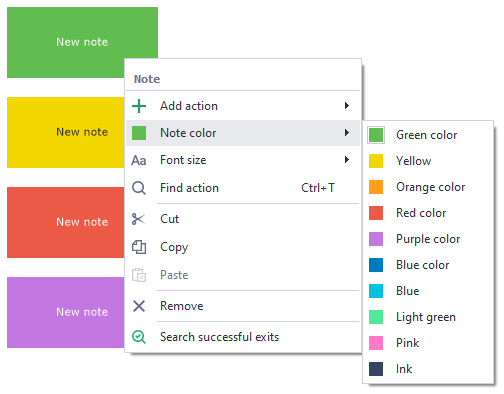
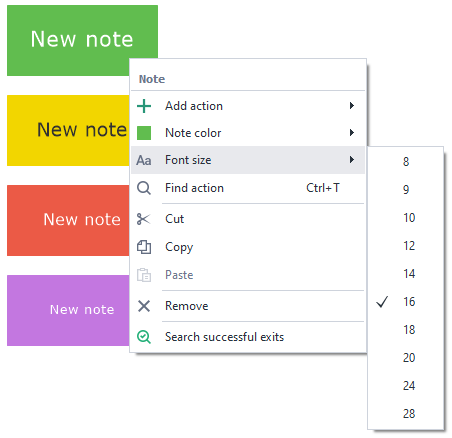
3.5.2. Setting the Color and Font of Notes
Right-click the note: