Android Settings (Enterprise)
Description
This tab has various options for configuring a real Android device. They're also suitable if you're working with a Bluestacks emulator.
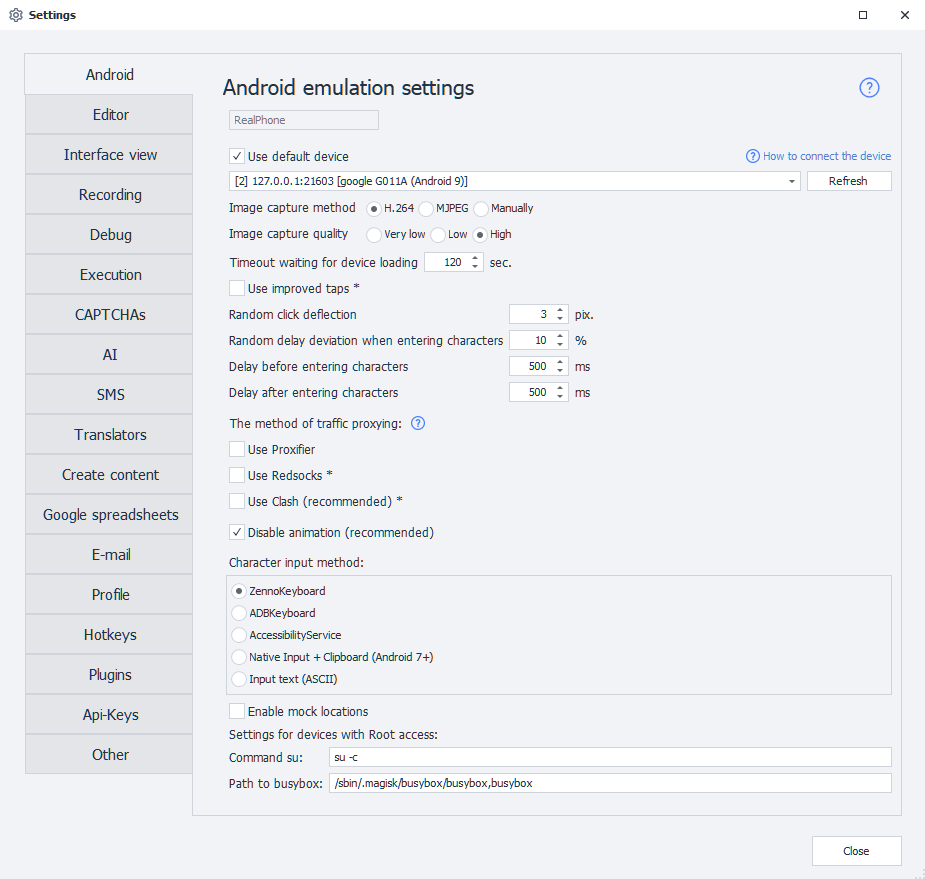
* next to a setting means it only works on rooted devicesUse default device
This setting lets you pick the device that will be used by default in Project Maker, as long as you haven't chosen another device. When selected, this device will be ignored by ZennoDroid when randomly picking from the available list.
If you want ZennoDroid to use the device you selected while running projects, you'll need to turn this setting off — otherwise you could get the error Device is busy in Project Maker.
Image capture method
Sets how ZennoDroid gets the picture from the device:
- H.264 — the default one, the picture comes over as a video stream.
- MJPEG — an alternative method. You should only pick it if running the device through ZennoDroid always ends in an error and the log shows
Failed to capture image. - Manually — nothing is captured continuously, the picture is only refreshed on demand: with the refresh button in the Device window or the RefreshScreen method. Handy when you don't need the picture all the time, as it saves both computer resources and bandwidth.
Image capture quality
Three levels: Very low, Low and High. The lower the quality, the lighter the load on the CPU and on the connection — which tells when you run a lot of threads.
The setting is unavailable while the capture method is Manually. In code the quality is changed with the SetCaptureScreenQuality method.
Timeout waiting for device loading
This setting lets you set a timeout for connecting to the device.
Use improved taps
Turns on the emulation of real screen taps: they are injected through the kernel input layer, so they are visible to getevent, have a size of their own and work on protected pages. They also work on devices with no display (touchpad).
In code the mode is turned on with the SetNativeEventMode method — before connecting to the device.
Random click deflection
Lets you make clicks with a slight offset from the set coordinates. It's used in these actions:
- Image search — clicking on the screen will be a bit offset rather than exactly where you specified.
- Perform event — if you pick Center for click coordinates, the tap on the element won't be 100% precise, it'll have a small random offset.
Random delay deviation when entering characters
Used in Keyboard emulation and Set value actions. Lets you set a variation in the delay from the specified value.
For example, if you set a 150 ms delay and a 10% offset, the actual delay per character will range from 135 ms to 165 ms.
Delay before and after entering characters
Just like the previous setting, this one is used in Keyboard emulation and Set value actions to set up delays.
The method of traffic proxying
ZennoDroid lets you pick how to proxy traffic for the Set proxy action. By default, it uses Proxifier.

- Proxifier — the traffic is routed to the computer and proxied there.
- Redsocks — a transparent redirector of TCP/UDP connections into a proxy, on the device itself.
- Clash — rule-based proxying that wraps the whole of the UDP traffic.
Every method is described in detail in Traffic Proxying (Enterprise).
Disable animation
This option lets you turn off all system animations. We recommend checking this box since smooth transitions really slow the device down.
Character input method
Lets you pick the best way to emulate text input:
- ZennoKeyboard — the default method starting from version 2.6.1.0
- ADBKeyboard
- AccessibilityService
- Native input + Clipboard
- Input text
Every method is described in detail in Input Methods.
Enable mock locations
This option is used for setting a custom device location with the Set Geo-location action.
Settings for devices with root access
These settings are needed for the Save/Restore app data actions. We don't recommend changing them unless necessary.
The su command lets you set the path and parameters for running commands with superuser privileges. Default: su -c.
The busybox path setting lets you specify where busybox is.
Default: /sbin/.magisk/busybox/busybox.