Editor

Editor
Open projects that were not closed during last session at startup
If you enable this option, when you launch the program, all projects that weren’t closed before you last exited will open up automatically.
Draw element screenshot (if available)

You'll see a screenshot of the corresponding element on the action block itself. This will make the overall template heavier, but it helps you navigate it more easily.
Don’t fill action settings cache
Disables loading the action settings cache, which speeds up the program’s startup time.
Show resulting variable in the action block description
Adds a line to the comments of some blocks (ones that are supposed to return a result) that looks like this: action name → {variable}.

Sort project variables alphabetically
Variables will be arranged in alphabetical order.
Enable autocomplete in dropdown lists

When typing a variable name or list/table in a dropdown field, autocomplete will kick in. This saves you from typing out the whole name and helps fill out the field faster.
Don’t ask to save a new project
Removes the window asking if you want to save the project after clicking Start Over.
Suggest to create actions for a new line
When you create a new line—by dragging an arrow from a block—a list of possible actions to add will automatically pop up.

Show window for quick move to actions
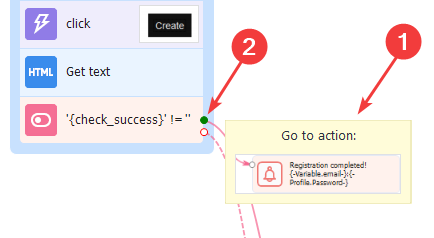
When you hover over a connector dot, a quick jump window for actions will show up.
Action Properties
Limit width of action properties
Controls the grid in the Action Properties window. If checked, the grid has a fixed size. If unchecked, it will flex and adjust to the window’s width.
Open multiple action settings in “With/Without Device” mode
Lets you open several action settings at once next to the block. By default, this option is enabled only in “Without Device” mode. So, if you connect a device, this setting becomes inactive.
 |
|---|
| You can open two or more settings windows |
Other
Max height of the log message before scrolling
Sets how much of a log message will be visible before you have to scroll. The number means how many lines are shown for preview.
Height of line in variables list before scrolling
Likewise, this sets the visible height for cells in the Variables window before scrolling becomes necessary.
Number of lines in static blocks before scrolling
Here you set how many lines are visible in the static blocks section before you have to scroll.
Number of recently opened projects
Controls how many of your latest projects will show on the Welcome page.
Autosave timeout
Sets how many minutes pass before your project is auto-saved.
Folder for C# snippets
Sets the directory from which C# snippets are loaded automatically into the program.
Default directory:
C:\Users\*USERNAME*\AppData\Roaming\ZennoLab\ZennoDroid\2\Snippets
Font for C# and JavaScript code
Lets you choose the font used in C# and JavaScript code actions. By default, it’s Consolas at size 10.
Remember the cursor position in the C# block
The code will open to the line where you left off last time.
Default line numbering in C# blocks
Lines in C# code will be automatically numbered.

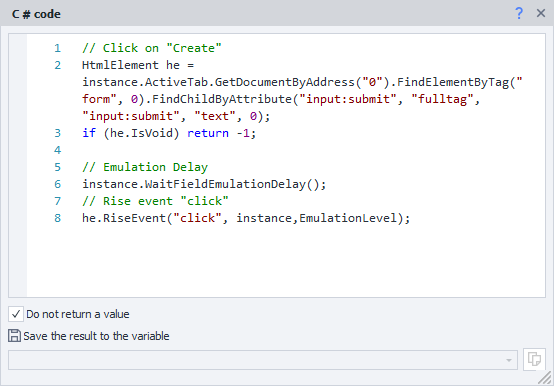
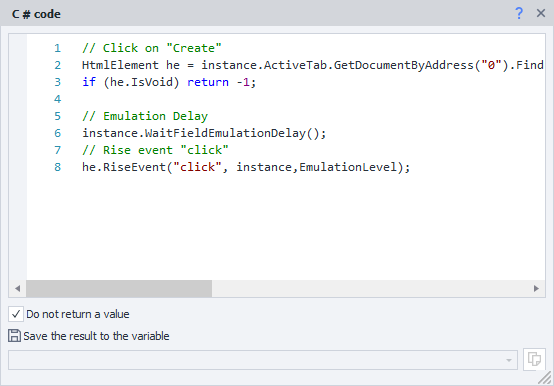
Wrap lines in C# code by default
Turns on automatic word wrap in C# code if the lines don’t fit in the window.
 |  |
|---|---|
| Wrap on | Wrap off |
Mass encryption of projects
This button lets you Encrypt all open projects at once.