LSPosed Setup
Description
The ZennoDroid module is needed to spoof key device parameters: IMEI, Android ID, mobile operator, model, WiFi, Bluetooth, and others.
Supported phones: Android 8.1-16
Installing the LSPosed Framework
Starting with ZennoDroid 2.5.0.0, you'll need a phone with Magisk and a working LSPosed Framework v2 to install the module.
Enabling Zygisk in Magisk
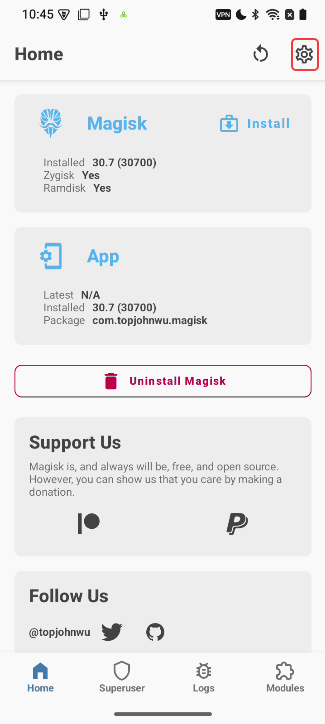 | 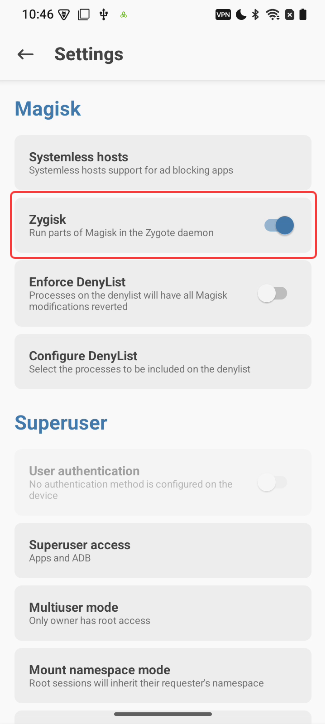 |
|---|---|
| Magisk Setting | Turn On Zygisk |
The current official version of LSPosed is distributed through the official Telegram channel. You can also download the latest version of LSPosed via this link
Download this build to your phone in the sdcard/Download/ folder and install it using the standard menu.
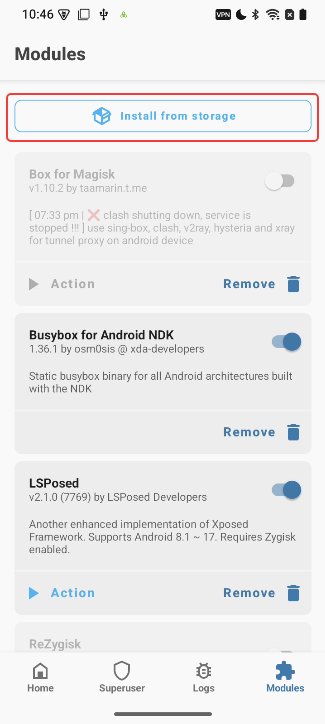
Installing the ZennoDroid Module
The ZennoDroid module is installed automatically when you first try to change device parameters or when you run any action from the LSPosed Management group. On the first launch, your device will ask for superuser rights. You'll need to tap the "Allow" button (when using Magisk, permission is granted automatically).
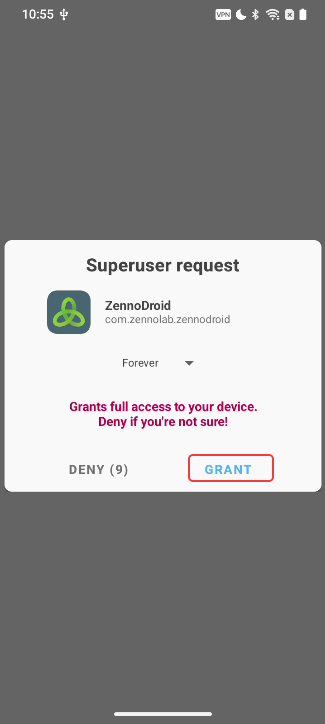
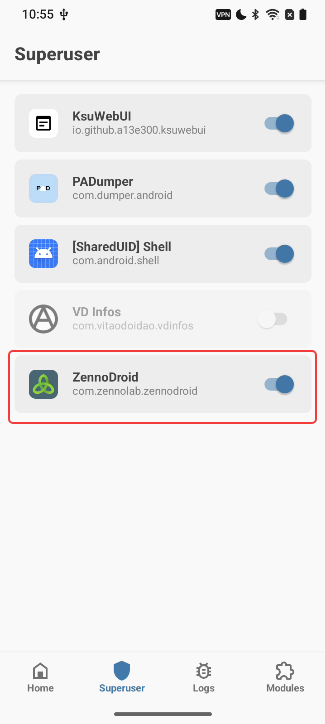
If you missed this or accidentally tapped "Deny", just open Magisk, go to the Superuser tab, and turn on automatic superuser rights for ZennoDroid.
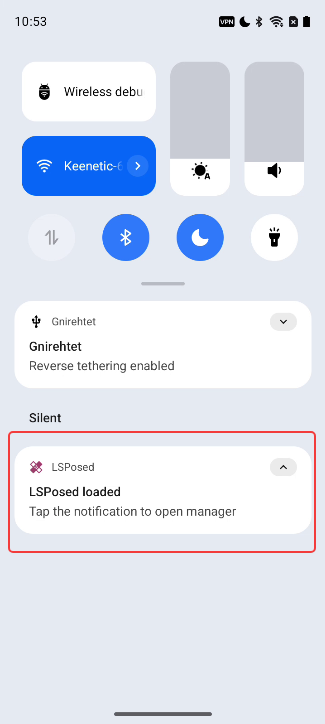
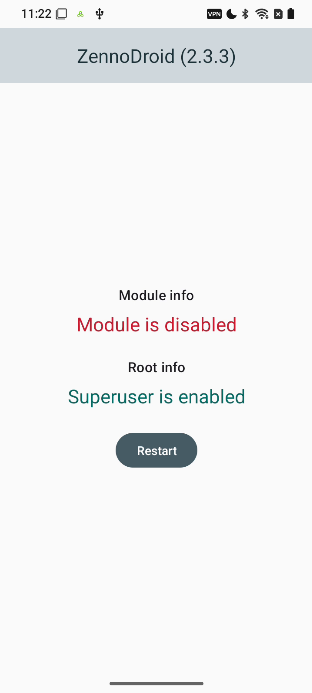
After you launch the module, a notification will appear on your device screen saying it's turned off.
To fix this, open LSPosed from the notification panel, switch to the Modules tab, and turn on the ZennoDroid module.
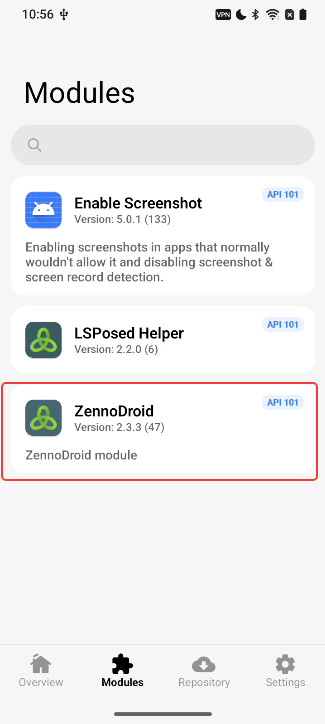
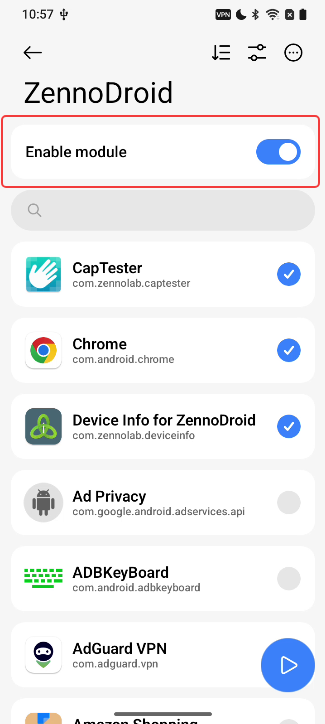
Now you can pick which apps will get spoofed device parameters.
Important Information
- You should only add the apps to the spoof list that actually need their data changed. There’s no need to add the system framework.
- If you delete an app after activating it, then reinstall it, you must re-activate it in the spoof list (uncheck and check the box).
When you remove an app, it disappears from the spoof list. If you reinstall it, it won’t show up in the list automatically (the box might be checked, but spoofing won’t work).
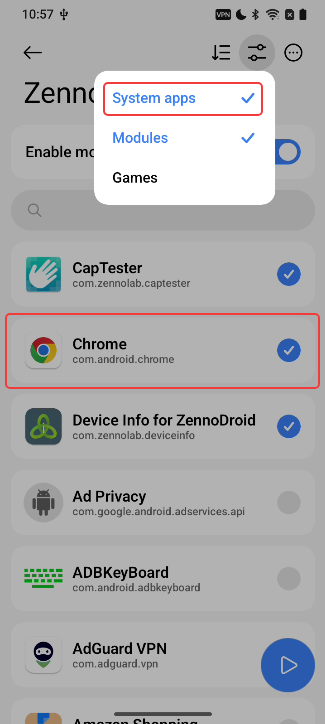
- Not all apps appear in the list by default. If you don’t see the app you need (like Google Chrome), go to the Settings menu and select the right group.
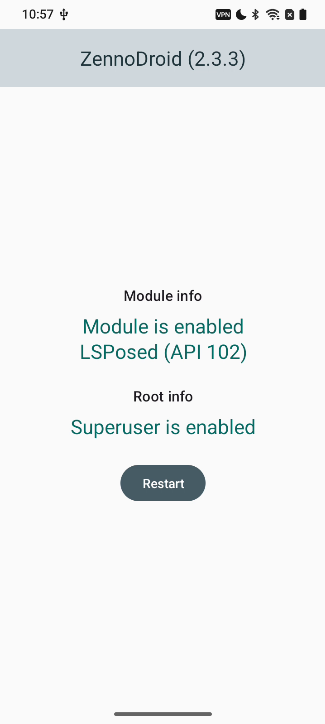
- After picking the apps for spoofing, go back to ZennoDroid and tap “Restart”. Once it restarts, a notification will show that the module is ready to use. Now you can change device parameters with actions.
- After spoofing device parameters, close the necessary apps. It’s best to do this with the “Close app” action.
But some system apps will restart themselves right after, so they might see the old parameters.
API for managing LSPosed
In ZennoDroid 2.4.0, we added an API for managing LSPosed.
Main functions:
- enable and disable the required module;
- select apps in the replacement list of the required module, and also add or remove them from the list;
- create and restore a settings backup (saving to both the phone and a computer is supported);
- get information about LSPosed.
Video tutorial
Setting up the ZennoDroid module and the DisableFlagSecure (
io.github.lsposed.disableflagsecure) module, which allows viewing secured pages.
Examples of working with the API are also included in the archive LSPosedAPI.zip.
Managing LSPosed using actions
In version 2.4.6, a convenient way to manage LSPosed was added through a group of actions.
Useful Links
- Template for spoofing device parameters via actions and API: fakeDeviceBrief.droid
- Latest version of LSPosed Framework v2
- Connecting a real device to ZennoDroid
- Device settings