Waiting for user actions
Please read the Material Usage Rules on this site.
This action stops the project and hands control over to a person: the device window stays open, and whatever the template should not do itself can be done there by hand.
Used for:
- Typing a login and a password you would rather not keep in the template
- Entering bank card details
- Passing checks the template cannot pass on its own
The same wait can be started from code, with the WaitForUserAction method of the Action API.
How do I add it to my project?
Through the context menu: Add action → Logic → Waiting for user actions.
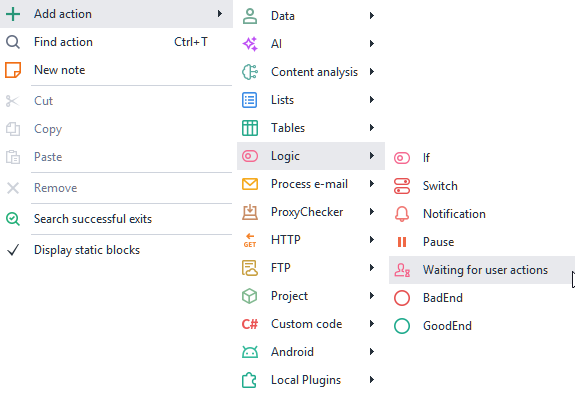
How does this action work?

Timeout, sec.
How many seconds are given for the manual work. You can enter a number or use a variable, which has to hold a number.
Once the time is up, the project carries on by itself.
When you cannot tell in advance how long it will take, set a deliberately large value -
99999, for instance.Message.
The text the person sees in the device window. This is where you write what exactly has to be done.
The waiting bar.
While the action runs, a bar appears at the top of the device window:
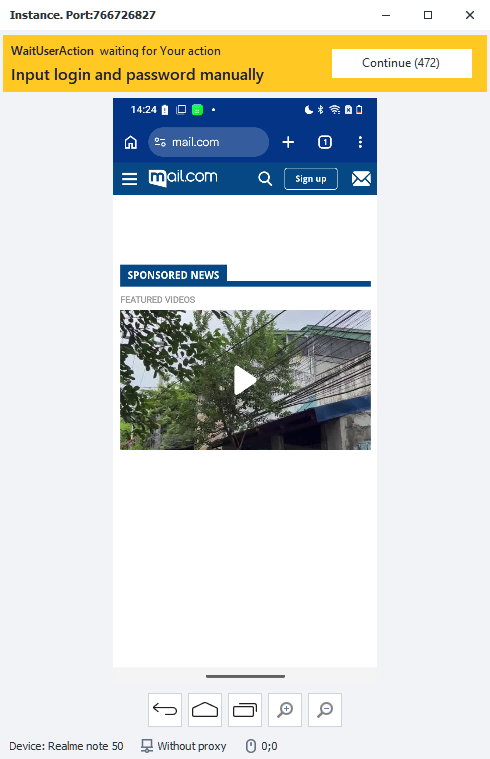
- Top left - the project name that stopped on this action.
- Below it - the message set in the action.
- On the right - the Continue button, with the seconds left until the project carries on by itself in brackets.
Pressing Continue hands control back to the template right away, without waiting the timeout out.