Receive e-mails
Description
Lets you find the email you need and the info in it. Good for handling large volumes of incoming mail.
Suitable for:
- Quick access to emails
- Getting data from emails
- Account activation
- Deleting unwanted emails
- Deleting downloaded emails
How do I add it to my project?
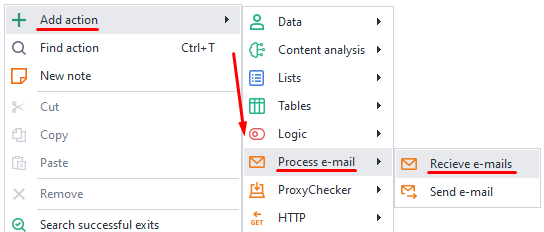
Right-click menu: Add Action → Work with mail → Receive e-mails.
How do I use this action?
"Main" tab

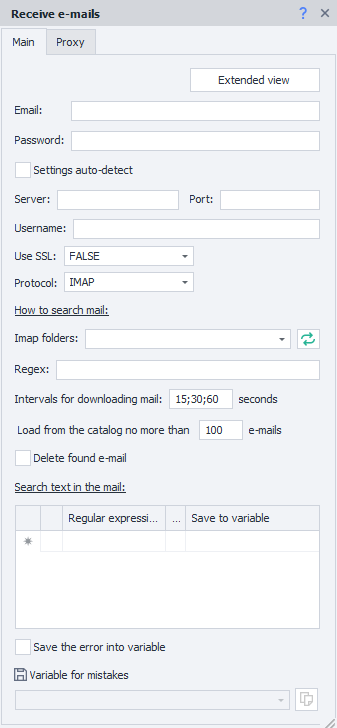
"Advanced view" button
When you click this button, the Mail Processing window opens.
Email and Password
Enter the email and password for the mailbox here
Connection settings

Auto detect settings
When on, ZennoDroid will automatically select settings for connecting to the mail server.
Server, Port, Username, Use SSL, Protocol
You need to get all these settings from your mail provider's documentation.
How to search mail
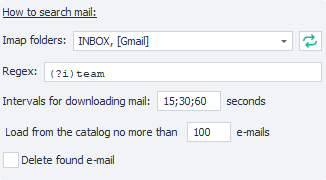
Imap folders
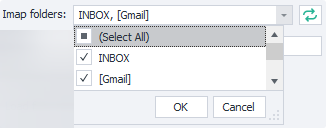
Here you can pick which mailbox folders the emails will be searched in.
 This button refreshes the list of available folders.
Regex (Regular Expression)
Type in a regular expression here to filter the emails you want in the mailbox.
Intervals for downloading mail
Emails from services can come with a delay. So you can set the interval in seconds and how many times to try downloading the list of emails.
The divider ; shows the number of attempts. For instance, in the screenshot it's: first try after 15 sec, second - 30 sec, third - 60 sec.
Load from the catalog no more than
Set the number of emails to be downloaded.
Delete found e-mail
If on, the found email will be deleted from the mailbox after it's processed.
Search text in email
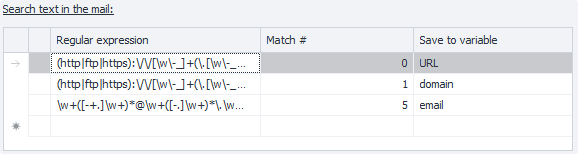
You can save the results of a few different regular expressions at once!
For example, in the email you might have:
- activation code,
- website address,
- phone number,
- name and surname. You can pull all this out in one go! Just write a regex for each item and add variables to save the results into.
Regular Expression
Write the regex for finding the text you need.
Match
Often a single regex may have more than one match. Here you'll see the zero-based number of the found item. Counting starts at zero.
The project structure can change, so can the order of links. Try to write your regex so that it only matches one result.
Save to variable
In this column, pick an existing variable or create a new one – this is where the regex result will be stored.
Save error to variable

If there's an error during the action, this setting will save its text in a variable (new or existing).
"Proxy" tab

No Proxy
The action will work through your computer's/server's actual IP.
Format string

Enter the proxy in one of these formats:
- With authorization
socks5://login:password@ip:portorhttp://login:password@ip:port - Without authorization
socks5://ip:portorhttp://ip:port - Without protocol (defaults to http://)
login:password@ip:portorip:port
Other

Pick this option if you need detailed proxy settings: proxy type, auth details, address, and port. You can get this info from your service provider.
Example
Let's say that after registering in an app, you need to confirm your account by clicking the link in the email.

- Sign up in the app.
- Add the Receive Mail action to your project and set it up.
- Get the activation email.
- Click the link.
- Account is successfully confirmed.
This is especially handy when automating things in apps, since not using a separate mail client saves time and resources.