Basic Settings
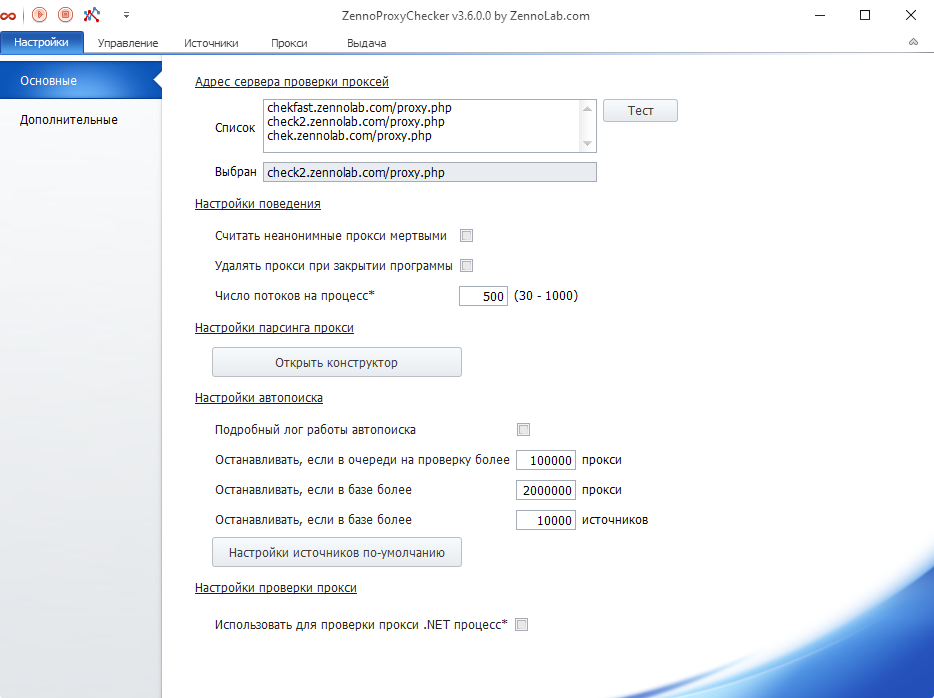
What basic settings are available in ZennoProxyChecker?
Proxy Check Server Address

Select a proxy checking server from the list of addresses.
List
The URLs that the program uses to check proxies. By default, three addresses are listed here, but you can add your own.
"Test" Button
After clicking it, the program will sequentially check the addresses from the "List" above to see if they are working. The test will finish when the first working proxy checking server is found or when the list of addresses is exhausted.
Selected
This shows the address that will be used to check all proxies to determine whether they are alive or not. The first working address from the "List" is placed here.
Behavior Settings

Treat non-anonymous proxies as dead
The program will filter out non-anonymous proxies and return only anonymous ones.
Delete proxies when closing the program
Clears the proxy list when the program is closed.
Number of threads per process
Specifies the number of threads used for checking.
To apply the changes, you need to restart the program.
Proxy Parsing Settings

Here you can add new and edit existing proxy parsing structures (in fact, a structure is a set of regular expressions). To open the parsing constructor, click the "Open Constructor" button.
Proxy Parsing Structure Constructor
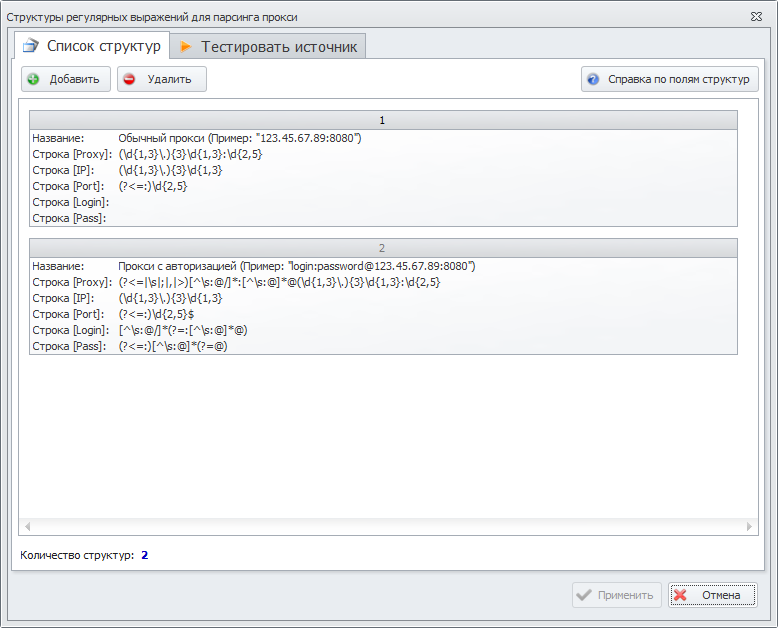
“Structure List” Tab
By default, 2 regular expressions are already added here. You can also use your own regular expressions by clicking the "Add" (1) or "Delete" (2) button.

Some websites may use their own proxy markup, so if necessary, you can create your own parsing structure for almost any format and test it on a specific source using the tester. By clicking the "Structure Fields Help" (3) button, you can get a description of the fields used.
“Test Source” Tab
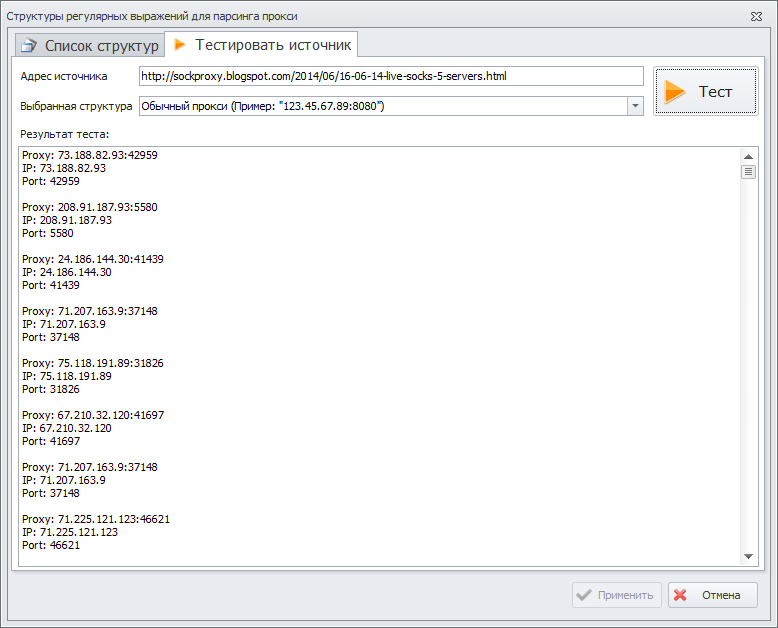
Source address: specify the website address from which proxies will be parsed.
Selected structure: choose the previously added parsing condition from the "Structure List" tab. Then click the "Test" button to start testing.
In the "Test result" window, you will see the proxies obtained according to the parsing conditions.
After closing the "Constructor" window or clicking the cancel button, the parsing results are not saved.
Auto-Search Settings
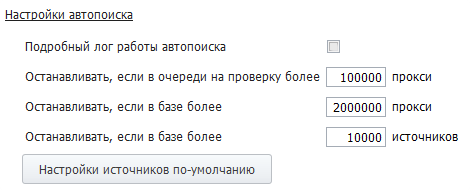
Detailed auto-search log
If you check this box, you will see a detailed report of ZennoProxyChecker’s operation in auto-search mode.
Stop if more than XXX proxies are in the checking queue
If this number of proxies in the queue is exceeded, auto-search will be stopped.
Stop if there are more than XXX proxies in the database
If this number of proxies in the database is exceeded, auto-search will be stopped.
Stop if there are more than XXX sources in the database
If this number of sources is exceeded, auto-search will be stopped.
Default source settings
Here you specify the settings that will be applied to all newly added sources. You can read more about source functions and settings in the article Source Settings.
Proxy Checking Settings

Use .NET process for proxy checking
If this option is enabled, proxies will be checked using the .NET implementation of CheckingProcessor (restart required).