Image Processing
🔗 Original page — Source of this material
Description
An action for editing and saving images.
How to add the action to a project?
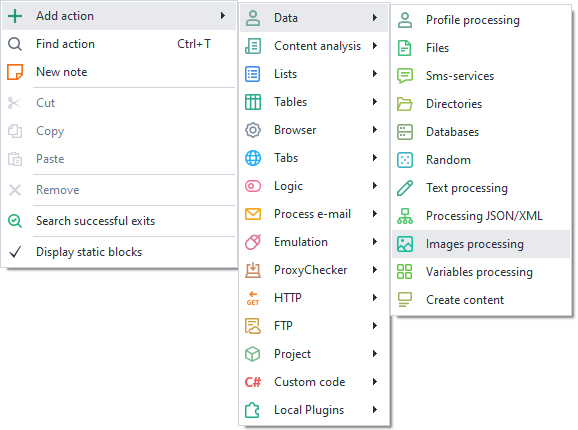
Via the context menu Add Action → Data → Image Processing
Or use the ❗→ smart search.
What is it used for?
- Editing the visual aspect of images
- Changing / clearing metadata
- Saving an instance screenshot
How to use the action?
Image Source
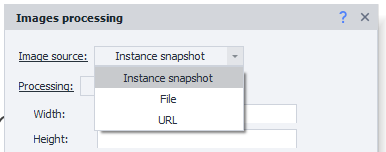
- Instance Screenshot – takes a screenshot of the current tab of the instance (browser)
- File – processes a file. When selected, you need to specify the file path on your computer. Macros can be used.
- URL – after selecting, you need to specify the link to the image, which will be processed.
If you use a URL as the image source, please note that downloading happens through your real IP address, even if a proxy is set in the project.
Processing
No Processing
The image will not be changed.
Useful for saving an instance screenshot or saving an image from a URL to your computer.
Resize
Allows you to change the image size
- "Width" and "Height" – numerical values set according to the "Size" field settings.
- Size – you can specify either a percentage or pixels.
- Preserve aspect ratio – if checked, the values you enter for "Width" and "Height" will be forced to the same value.
- Do not enlarge the image – if the specified width or height is greater than the image's width and height, resizing will not be applied.
Crop
Allows you to crop an image
-
Area – Visible or Custom.
-
Visible – Only relevant for the “Instance Screenshot” option. Crops the screenshot to the window boundaries, so only the visible part of the site is captured.
-
Custom – crops the whole image according to the set parameters, which are set in the listed fields below.
-
Left / Top / Width / Height – values in pixels or percentages.
-
Size – choose either "In pixels" or "In percent".
Rotate
Allows you to rotate the image by the desired number of degrees.
Watermark
-
Allows you to overlay text or an image on the processed file.
-
Overlay type – arrangement option: "Horizontal" or "Diagonal".
More about the Horizontal overlay type
- Placement – where the text/image will be placed
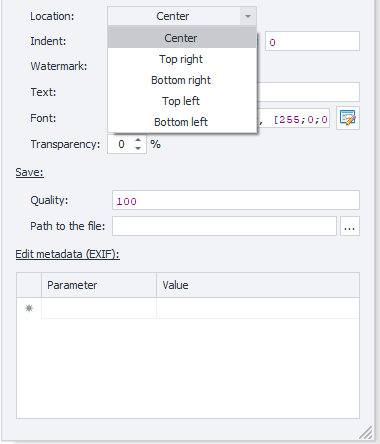
- Offset – specify the offset from the left or top, in pixels. The offset is relative to the placement chosen earlier.
-
Mark – image or text.
-
Image – you need to specify its path.
-
Text – you need to enter the desired text and choose the desired font (to the right of the *Font field there is a button that opens the visual builder for customizing the text).
-
Transparency – percentage value for the opacity of the overlaid text or image. The higher the value, the more transparent it is.
Mirror
Allows you to "mirror" the image according to specified parameters.
Clear Exif
Allows you to clear all image metadata.
Save
You need to specify the quality in percent and the path where to save the file.
The path should include the file name and extension. You can also use ❗→ variables.
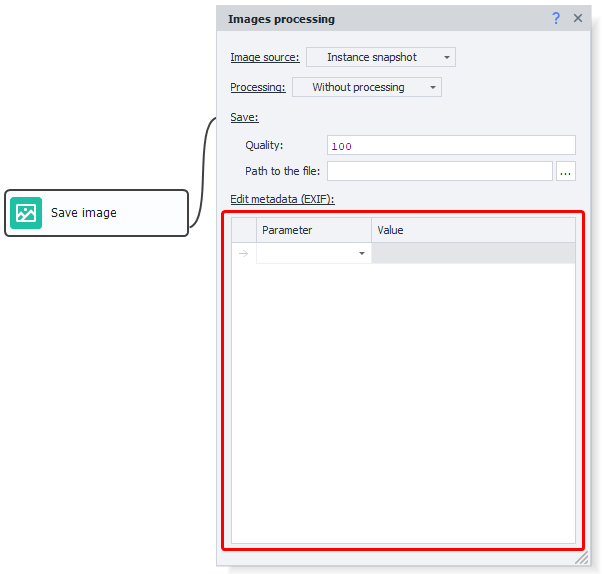
Edit Metadata (EXIF)
Allows you to change specific metadata. You can use this with all processing types except "Clear Exif".
Usage Example
Let's imagine you have created a template, and at some point while working with a website, it results in an error. To understand what's going wrong, you can take a screenshot at the moment of the error to evaluate the situation visually.
Create an action ❗→ Random Numbers and Strings (Random), then generate a number or "thread" name and save it into a variable { -Variable.thread- }.
Next, you need to create a ❗→ Bad End block and connect it to the image processing action. Set the configuration as in the screenshot:
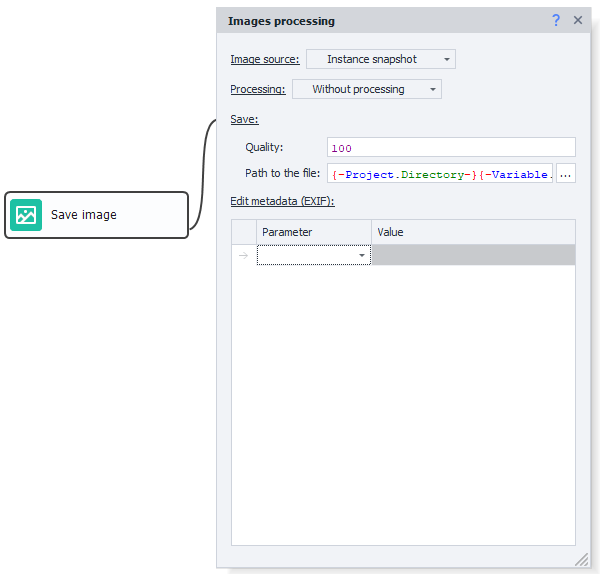
As the path, specify: { -Project.Directory- }{ -Variable.thread- }\Instance_screenshot.jpg
You can also save the page code { -Page.Dom- } using the ❗→ Write to file action. This helps catch errors occurring during browser work.