Element Properties Window
🔗 Original page — Source of this material
Description
When working with the HTML code of a page, depending on the tag, an element has its own attributes that help you analyze or identify the object for further work.
When analyzing the source code, you may often come across elements that seem identical at first glance, which can lead to incorrect results when working with data. By using the Element Properties window, you can examine objects in detail, specifically their attributes (properties).
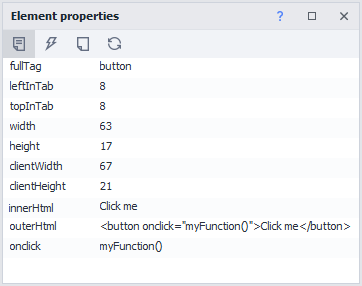
How do you work with the window?
Enabling the window
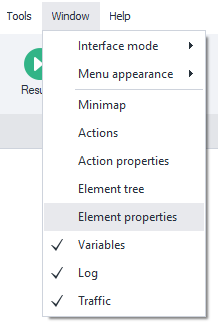
To enable it, click Window in the top menu and select Element Properties:
Showing information for the desired element
There are several ways to display information in this window for the element you’re interested in:
- Add it to the ❗→ Action Builder and XPath Search
- Select it in the ❗→ element tree window
- Right-click the desired element and choose Inspect or Follow Cursor from the context menu.
The “Properties” tab
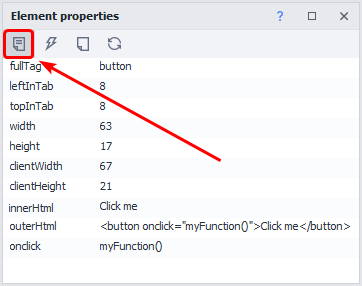
This tab is open by default.
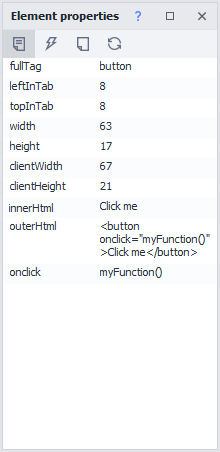
It displays the attributes of the selected HTML element.
The “Events” tab
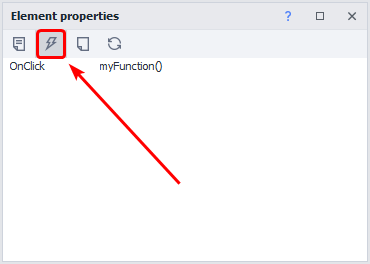
This tab displays the JavaScript events attached to this element.
IMPORTANT! An event will only appear here if it’s explicitly specified as an attribute in the HTML code of the element being analyzed:

The “Show Empty Fields” button

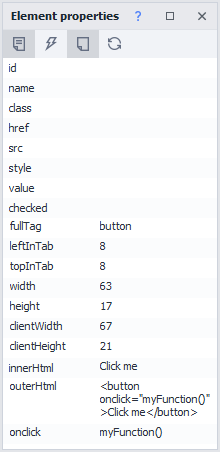
When enabled, the “Properties” and “Events” tabs will also display empty attributes/events.
Before enabling
After enabling
The “Refresh Fields” button
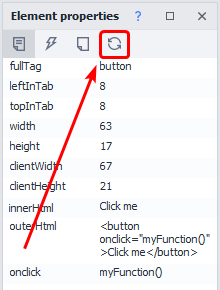
This button lets you refresh the values of the element’s attributes.