Context Menu
🔗 Original page — Source of this material
Description
To open the context menu, right-click on a project in the ❗→ project table. You can also select multiple templates and right-click, and the chosen action will then be applied to all selected projects at once.
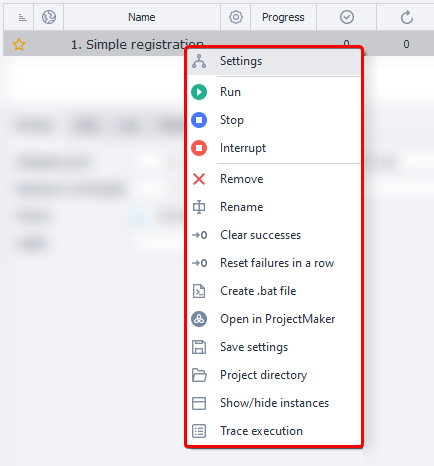
Menu Items
Settings
This option opens the project's ❗→ input settings. You can also open these by double-clicking on the project.
Run
Starts executing the template. In the “❗→ Project Settings” tab, be sure to set the number of threads and repetitions.
Stop
Gracefully stops the process. When you select this function, all running threads will finish their current work and won’t start again until the “Run” button is pressed.
Abort
Force stops the process immediately. The project will be stopped right away.
Delete
Removes the template from the ❗→ project table.
Rename
This function allows you to change the project name. You can also open the rename dialog by pressing F2.
Reset Success, Reset Consecutive Failures
Lets you reset the (un)success counter to zero. This may be useful when ❗→ stopping by count is configured.
Create bat file
This function allows you to create a file for launching templates. More details are described in the article ❗→ Create bat file
Open in ProjectMaker
Opens the selected template in ProjectMaker for ❗→ editing (if you have ❗→ permissions to open and edit this project).
Save Settings
This function lets you save all settings and data for the project — thread count, number of runs, tags, stop conditions, current status, id, schedule, and more.
The resulting file extension is .zptsk. You can open this file with any text editor (Notepad++, SublimeText, etc.). The contents will be in XML format.
There is an example of the data below as a spoiler.
Settings in XML format
<id>e6a601d1-fd0e-4198-a667-80614726186f</id>
 <name>ProjectZ</name>
 <isnewbie>True</isnewbie>
 <isenable>True</isenable>
 <createtime>08/08/2021 12:14:32</createtime>
 <settingstype>InputSettings</settingstype>


 <showautofilterrow>False</showautofilterrow>
 <executionsettings>
 <id>552d0abb-9629-4521-a960-c11ac9274676</id>
 <limitofthreads>1</limitofthreads>
 <maxallowofthreads>0</maxallowofthreads>
 <donesuccessfully>1</donesuccessfully>
 <doneall>1</doneall>
 <numberoftries>0</numberoftries>
 <lastnumberoftries>1</lastnumberoftries>
 <priority>100000</priority>
 <proxy>UseProxyWithoutRemove</proxy>
 <status>Complete</status>

 <shouldbeexecutedrandomly>False</shouldbeexecutedrandomly>
 <grouplabels>sometag</grouplabels>
 <groupstates>Выполнены</groupstates>
 <maxnumofsuccessstop>1024</maxnumofsuccessstop>
 <timeout>-1</timeout>
 <maxnumoffailstop>128</maxnumoffailstop>
 <numoffailstop>0</numoffailstop>
 <showtask>False</showtask>
 <tracetask>False</tracetask>
 <performbadendoninterrupt>True</performbadendoninterrupt>
 </executionsettings>
 <scheduler7settings>
 <id>e6a601d1-fd0e-4198-a667-80614726186f</id>
 <isactive>False</isactive>
 <executeperiod>EveryDay</executeperiod>
 <startdatetype>Immediately</startdatetype>
 <attemptsrange>12</attemptsrange>
 <isclearsuccess>False</isclearsuccess>
 <intervals>09:00 - 17:00</intervals>
 <stopexecutionoutsideofintervals>True</stopexecutionoutsideofintervals>
 <repeattype>Continued</repeattype>
 <enddatetype>Count</enddatetype>
 <repeatcounttotalrange>525252</repeatcounttotalrange>


 <taskname>ProjectZ</taskname>

 <isonetimerunning>False</isonetimerunning>
 <istaskrunning>False</istaskrunning>
 </scheduler7settings>
 <project>
 <projectfilelocation>C:\ProjectZ.zp</projectfilelocation>
 <projecttype>Assembly</projecttype>
 </project>
 <schedulersettings>
 <id>4095f5b5-141f-43a1-888e-fa809fe3404d</id>
 <startdate>08/08/2021 12:14:00</startdate>
 <schedulerondate>01/01/0001 00:00:00</schedulerondate>
 <enddate>08/08/2022 12:14:00</enddate>
 <repetitioncount>1</repetitioncount>
 <scheduletype>EveryMinutes</scheduletype>
 <repeattype>FinishAfter</repeattype>
 <activatetime>01/01/0001 00:00:00</activatetime>
 <activateworktime>01/01/0001 00:00:00</activateworktime>
 <isactive>False</isactive>
 <numberoftries>0</numberoftries>
 <minutes>1</minutes>
 <days>1</days>
 <lastscheduledate>01/01/0001 00:00:00</lastscheduledate>
 <nextscheduledate>null</nextscheduledate>
 <isclearsuccess>False</isclearsuccess>

 </schedulersettings>
 <purchasestate>None</purchasestate>
How to import the data?
You can load these settings using a bat file with the following contents:
"%ZennoPosterCurrentPath%\TasksRunner.exe" -o LoadSettings -o "c:\path\to\file.zptsk"
What is this useful for?
-
You can dynamically change the project settings:
-
create several settings files in advance and load them using the ❗→ Run Programs action
-
create the file dynamically (with ❗→ file operations action), save the data to a file, and then load it in
-
loading a template that was previously removed from the ❗→ project table:
Detailed process description
Click the ❗→ Add button in the ❗→ Main Menu, and in the file selection dialog that appears, choose All files ( * ) in the bottom right corner (this will show files of all types, not just .zp files)
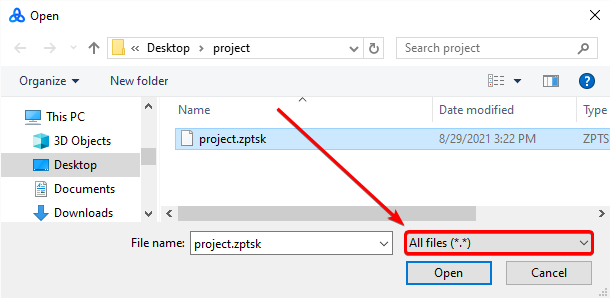
Then select the saved settings file .zptsk and click “Open”. The template along with all its settings will be added to the project table.
Project Directory
File Explorer will open the folder where the template file is saved.
Show/Hide Instances
The ❗→ Instances tab will be activated.
Trace Execution
This will start tracing the project. Learn more: ❗→ project tracing