Diagnostic Report with Detailed Log
🔗 Original page — Source of this material
Instructions for ZennoPoster and ZennoBox
Click here to expand
1. Enable the detailed log.
Settings-Other-Detailed Log (Debug information for developers)
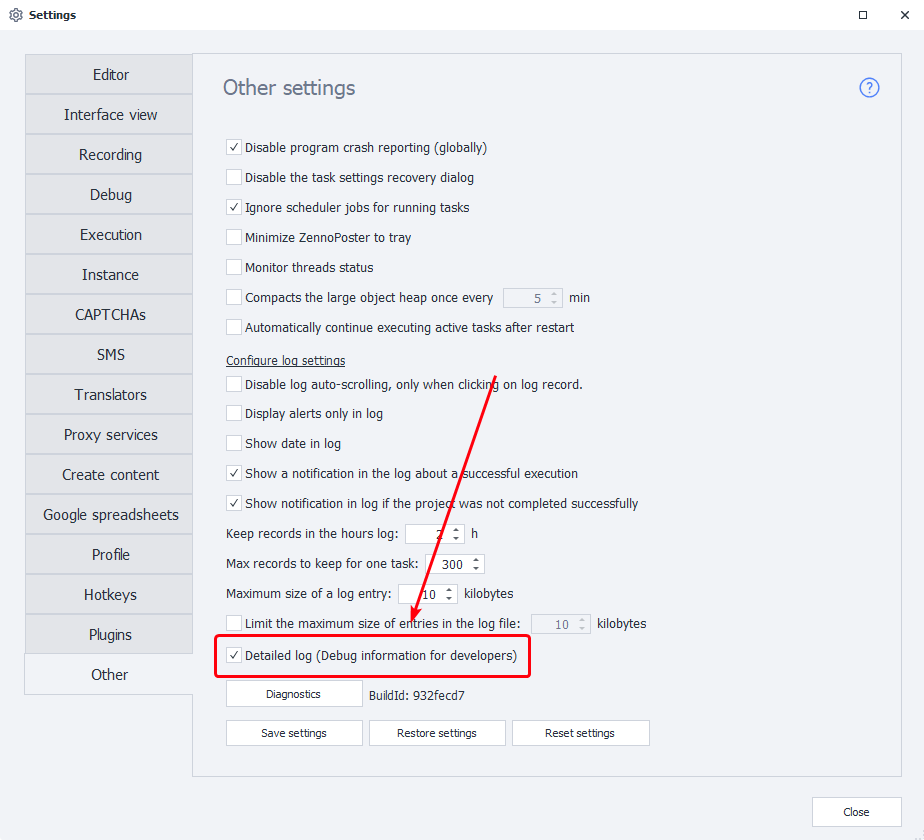
You can also enable it via a special app.
2. Restart the program.
3. Perform the actions that led to the error.
4. Run the Diagnostics.*
You should run diagnostics after the problem occurs; ideally, please remember the time the issue appeared.
You can start diagnostics in several ways:
- From the program interface (*Settings-*Other-button *Diagnostics at the bottom of the window)
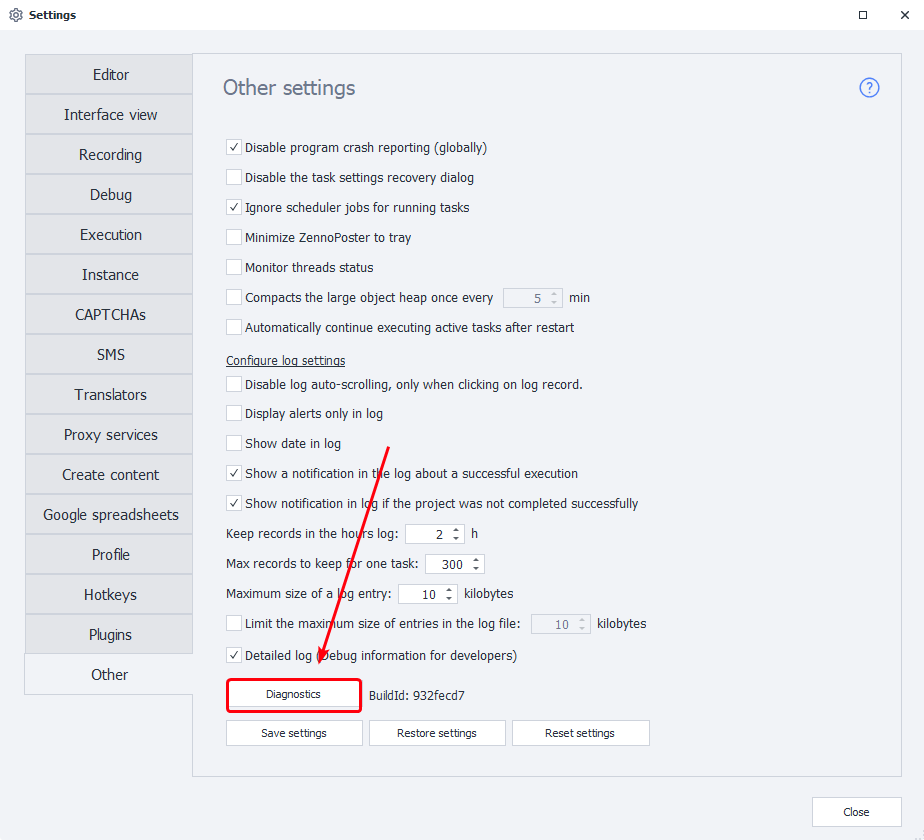
- Or from the installed program directory
ZennoPoster 7 -C:\Program Files\ZennoLab\RU\ZennoPoster Pro V7\7.4.0.0\Progs\Diagnostic.exe
ZennoPoster 5 - `C:\Program Files\ZennoLab\RU\ZennoPoster Pro\5.47.0.0\Progs\Diagnostic.exe```json
The path may differ on your system (different drive letter, program version, language)
5. Send us the resulting report.zip file
After diagnostics are completed, a report.zip file will be created. This file will be in the program's installation directory (it will open automatically once diagnostics finish).
Instructions for ZennoDroid
Click here to expand
1. Enable the detailed log.
Settings-Other-Detailed Log (Debug information for developers)
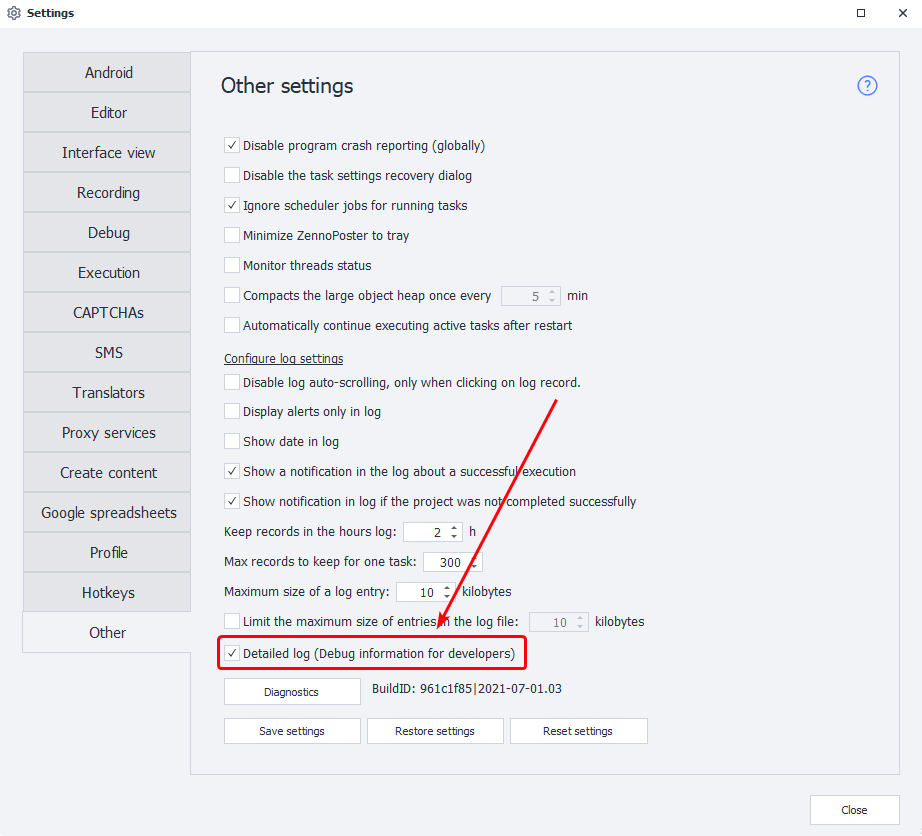
You can also enable it via a special app.
2. Restart the program.
3. Perform the actions that led to the error.
4. Run the Diagnostics.*
You should run diagnostics after the problem occurs; ideally, please remember the time the issue appeared.
You can start diagnostics in several ways:
- From the program interface (*Settings-*Other-button *Diagnostics at the bottom of the window)
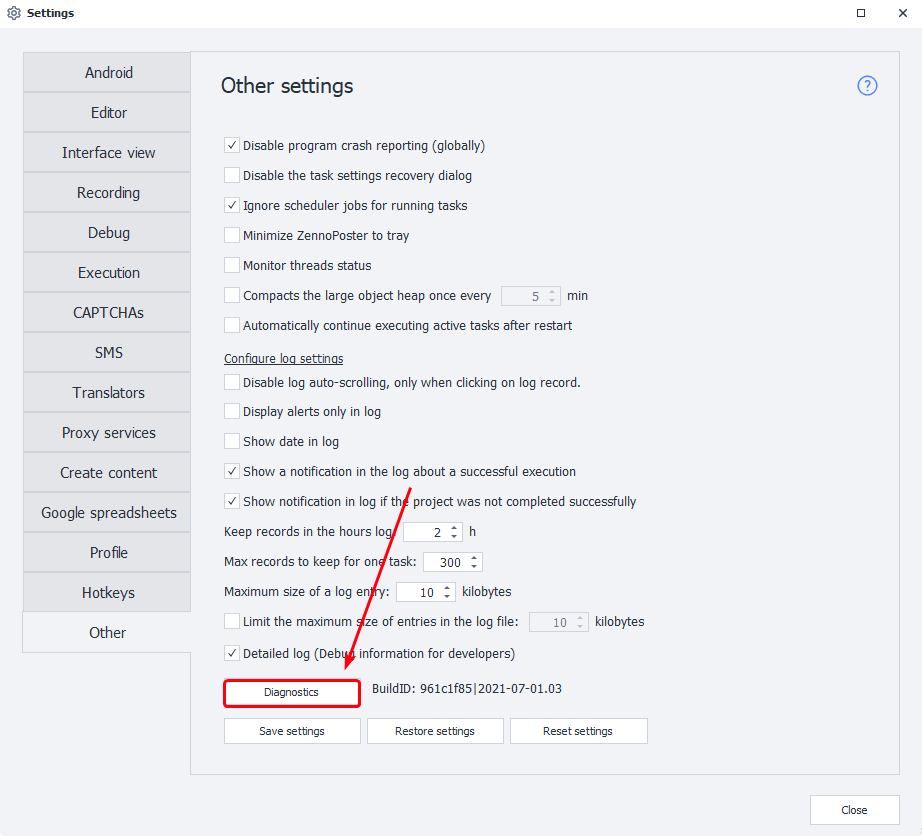
- Or from the installed program directory
C:\Program Files\ZennoLab\RU\ZennoDroid Pro\2.2.4.0\Progs\Diagnostic.exejson
The path may differ on your system (different drive letter, program version, language)
5. Send us the resulting report.zip file
After diagnostics are completed, a report.zip file will be created. This file will be in the program's installation directory (it will open automatically once diagnostics finish).
Instructions for CapMonster2
Click here to expand
1. Enable the detailed log.
Settings => Program => Detailed Log (debug information for developers) (above the Diagnostics button)
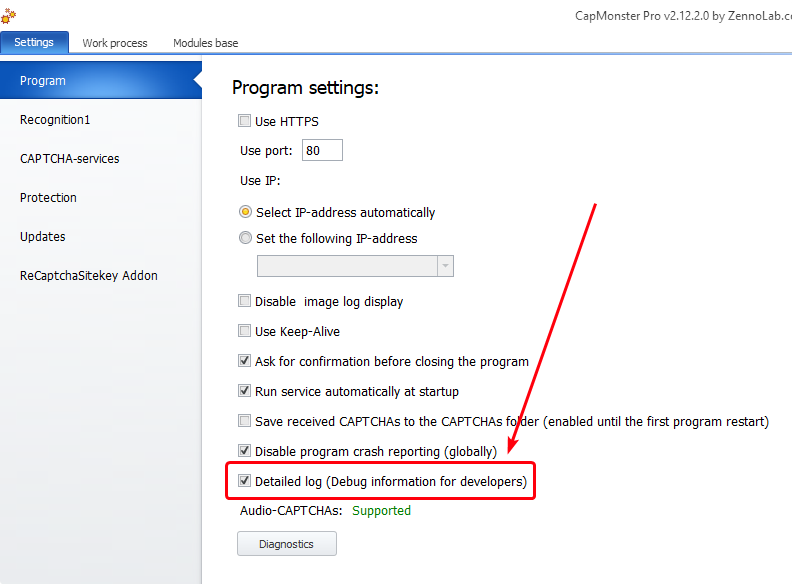
You can also enable it via a special app.
Do not restart CapMonster after enabling Detailed Log — the option is reset on restart. Proceed directly to reproducing the error.
2. Perform the actions that led to the error.
3. Run the Diagnostics.*
You should run diagnostics after the problem occurs; ideally, please remember the time the issue appeared.
You can start diagnostics in several ways:
- From the program interface (Settings => Program => Diagnostics button (at the very bottom of the window))
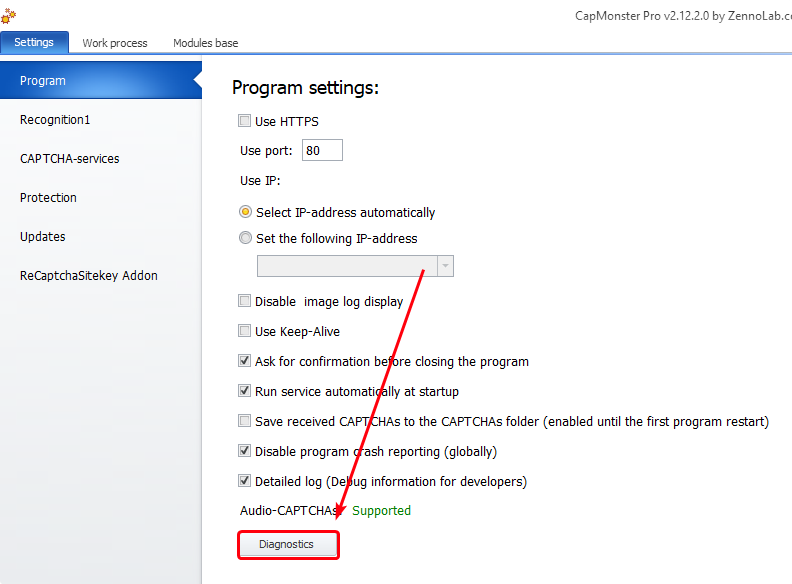
- Or from the installed program directory
C:\Program Files\ZennoLab\RU\CapMonster Pro\2.12.2.0\Progs\Diagnostic.exejson
The path may differ on your system (different drive letter, program version, language)
4. Send us the resulting report.zip file
After diagnostics are completed, a report.zip file will be created. This file will be in the program's installation directory (it will open automatically once diagnostics finish).
Instructions for ZennoProxyChecker
Click here to expand
1. Perform the actions that led to the error.
2. Run the Diagnostics.*
You should run diagnostics after the problem occurs; ideally, please remember the time the issue appeared.
You can start diagnostics from the installed program directory
```C:\Program Files\ZennoLab\RU\ZennoProxyChecker\3.6.0.0\Progs\Diagnostic.exe` The path may differ on your system (different drive letter, program version,)
3. Send us the resulting report.zip file
After diagnostics are completed, a report.zip file will be created. This file will be in the program's installation directory (it will open automatically once diagnostics finish).