Main Menu
🔗 Original page — Source of this material
Description

With this menu, you can manage projects — add or delete them, start and stop, set the number of attempts, configure the ❗→ Task Manager and the built-in ❗→ ProxyChecker.
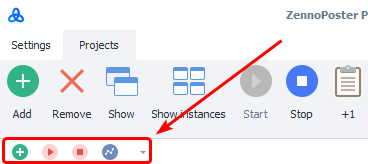
Quick Access Toolbar
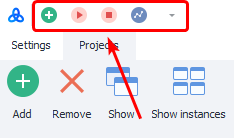
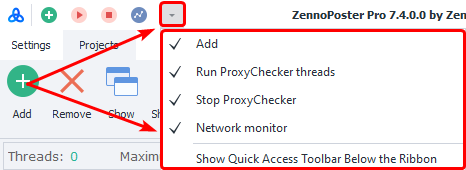
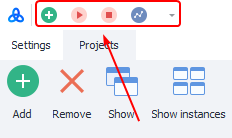
You can add buttons here for easy access. Even if you minimize the main menu with the buttons, this toolbar will still be displayed. By default, the following buttons appear here: *Add new project, Start and stop ProxyChecker ❗→ ProxyChecker threads (when started, proxy collection and checking is enabled), and the ❗→ Network Monitor.
How to add new buttons here will be described below.
With the arrow on the right side of this panel, you can hide or show elements without deleting them.
“Settings” and “Projects” tabs
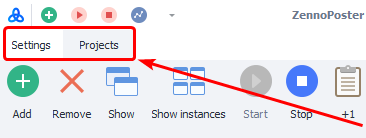
Here you can switch from the projects window to ❗→ ZennoPoster settings and the built-in ❗→ ProxyChecker.
Menu
Add
With this button, you can add project(s) to the program. After adding, they will appear in the ❗→ Projects Table.
Adding several projects at once
If you select several projects at once when adding, the following window will open:
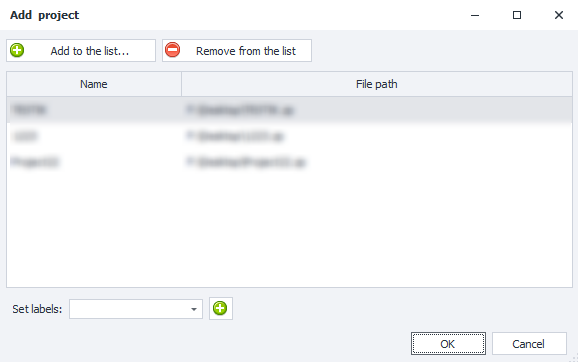
Add/Remove from the list
You can use these buttons to add new project files or remove unnecessary ones from the list you're adding.
Assign tags
Here you can choose existing tags or add new ones. The selected tags will be applied to all projects you are adding. You can read more about them in the article about the ❗→ Settings tab.
Delete
Deletes all templates selected in the ❗→ Projects Table.
Show
Opens the ❗→ Instances tab.
Show instances
Opens the ❗→ Instances tab and expands it to the full window of the program.
Start
Starts the selected, stopped projects.
Stop
Stops execution of the selected projects.
Adding new attempts

Adds the specified number of template runs to the current value.
If you click the button with the infinity symbol (∞), the selected project in the ❗→ How many to do column of the Settings tab will be set to -1 (minus one), which means infinite execution. The template will run until you stop it or one of the conditions specified in the ❗→ Stop tab is met.
Manual captcha entry
Opens the ❗→ captcha entry window.
ProxyChecker
Opens the control window for the built-in ❗→ ProxyChecker.
Task Manager
Opens the management tab for the ❗→ Task Manager.
Open in ProjectMaker
Launches the selected projects in ❗→ ProjectMaker.
Minimize menu
With the button in the upper right corner, you can minimize or maximize the Main Menu (you can also do this with the context menu, described below).
Context menu
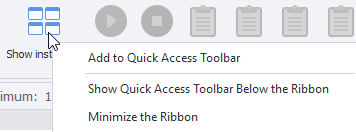
To open the context menu, simply right-click on any button.
Add to Quick Access Toolbar
Add the selected button to the Quick Access Toolbar (described at the beginning of the article)
Remove from Quick Access Toolbar
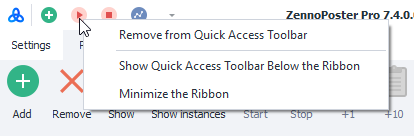
If you right-click on an element that's already in the Quick Access Toolbar, this item will appear first, allowing you to remove that element from quick access.
Show Quick Access Toolbar Below\Above the Ribbon
Allows you to move the Quick Access Toolbar below the Main Menu (Below) and move it back (Above):
Above the Ribbon
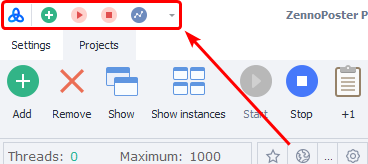
Below the Ribbon
Minimize the Ribbon
Minimizes the Main Menu.