«Instances» Tab
Please read the Material Usage Rules on this site.
Description.
In this tab, you can monitor the activity of all instances in real time.
Statuses
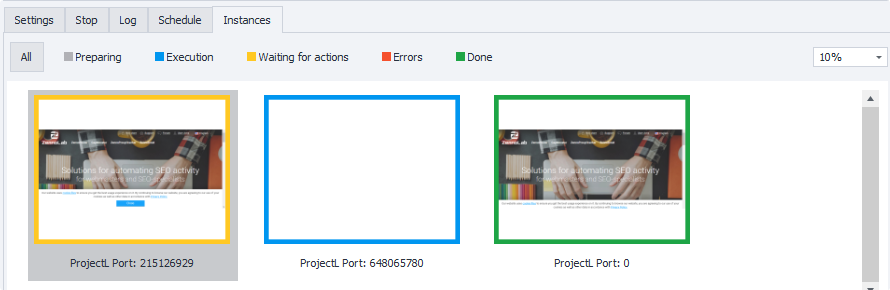
The color of an instance's border shows its current status:
- Gray — Preparing;
- Blue — Execution;
- Orange — Waiting for actions;
- Red — Errors;
- Green — Done.
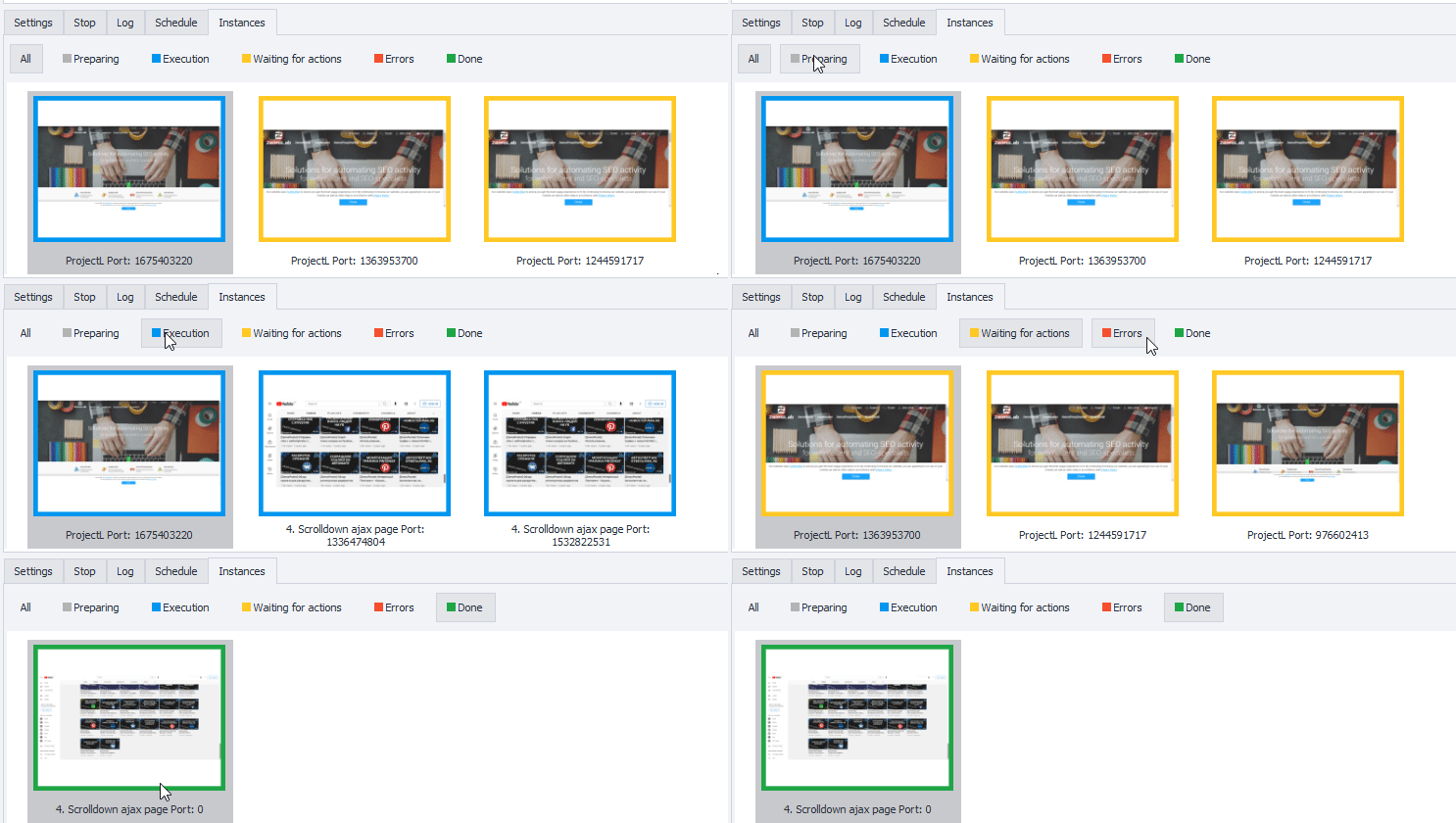
Filtering by status
You can also filter instances by their current status:
Working with the window
Changing the scale
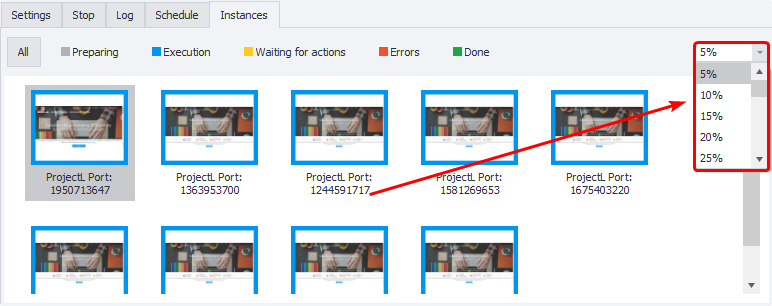
You can change the display scale using the drop-down menu on the right side of the tab.
 |
|---|
| Instances in this screenshot are displayed at 5% scale |
Opening an instance
Double-click on any thumbnail to open the instance window at its actual size.
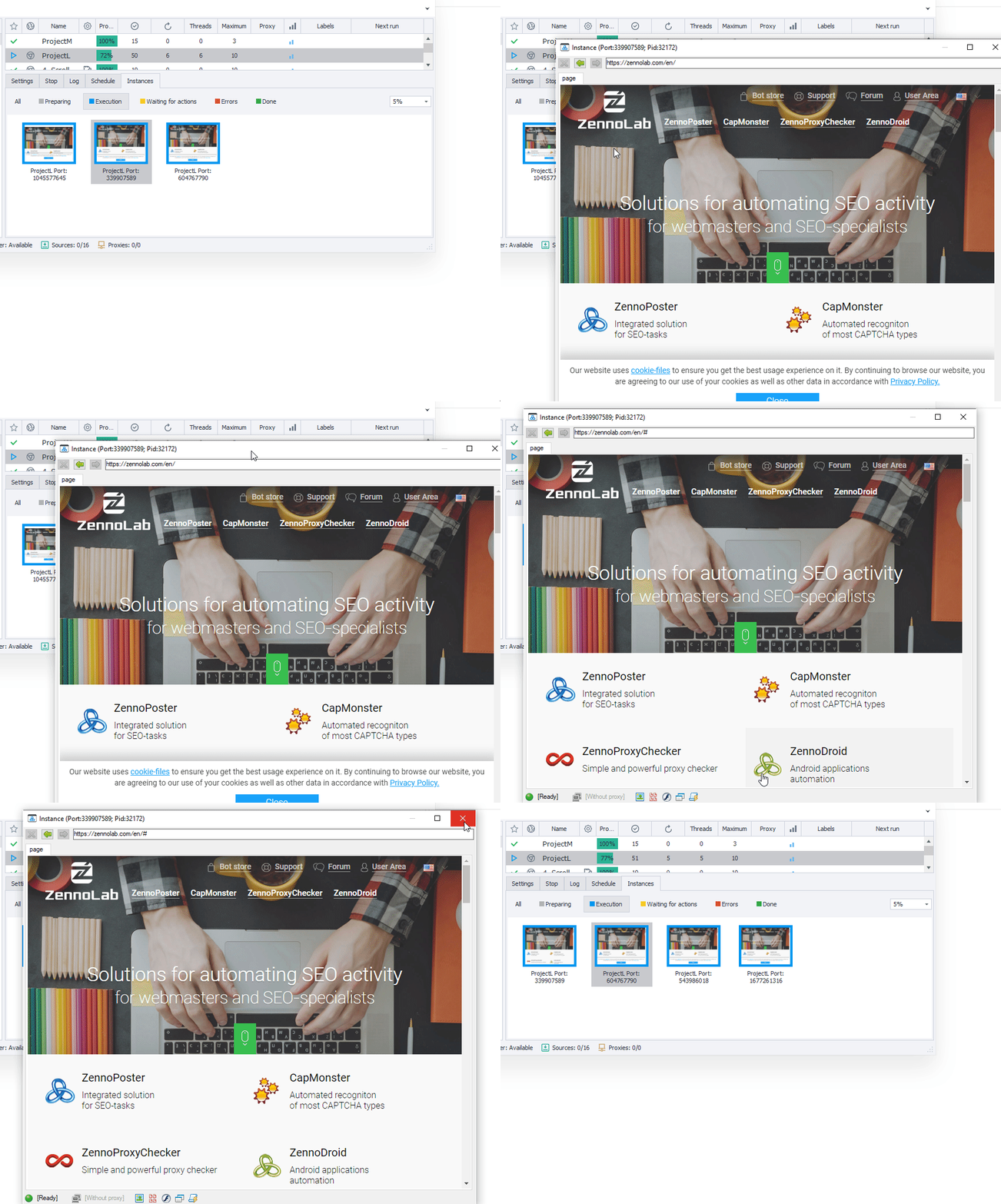
To close the window, just click the X in the top right corner.

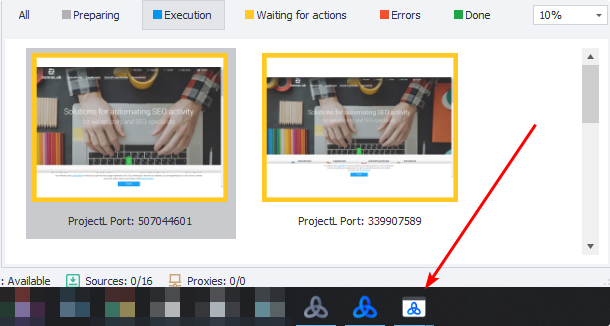
Waiting for user actions
Windows in Waiting for user actions mode will also appear on your computer's taskbar. You can minimize or maximize them as needed. When the instance's input timeout runs out, it'll disappear from the taskbar.
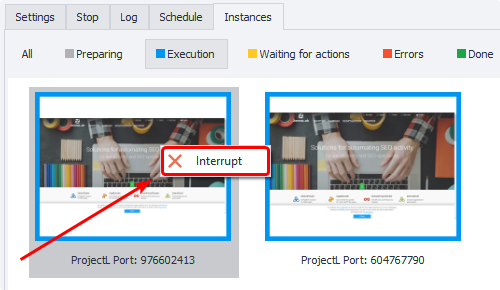
Interrupt an instance
You can stop an instance at any time. Just click its thumbnail and press Interrupt.