Working with Files
Please read the Material Usage Rules on this site.
This action lets you send files from your computer to your device and vice versa.
How to add it to your project?
Right-click → Add Action → Android → Files
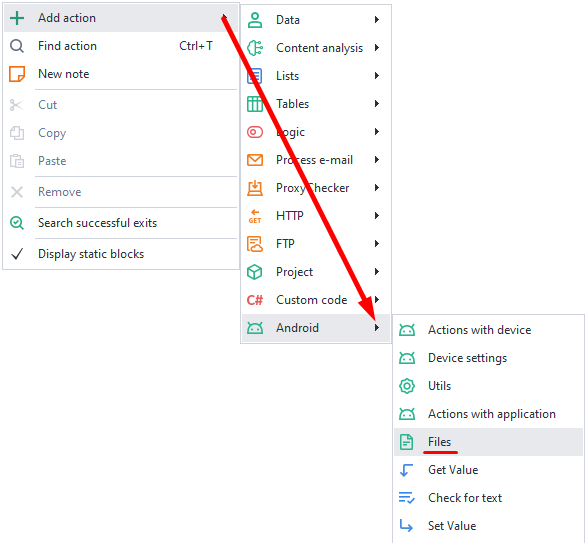
Push file.
Use this feature if you want to copy a file from your computer onto your device.
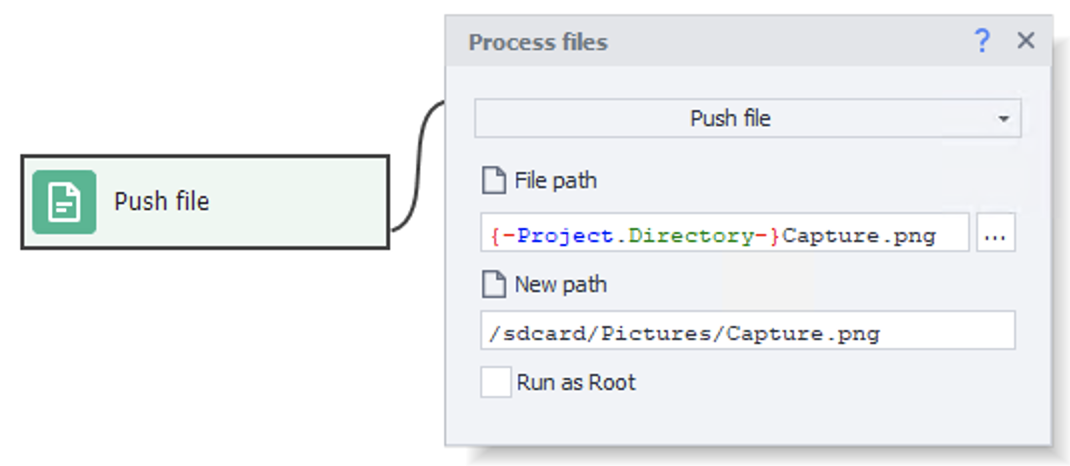
Available options:
- File path. The full path to the file on your computer.
- New path. Where the copied file will be saved.
You can specify the full path, including the file name:/sdcard/Pictures/pic.png, or just pick a folder:/sdcard/Pictures/. In the second case, the file will be copied with its original name. - Run as Root. This setting is needed to send files to folders that require superuser access.
When sending a file to such folders, a message containingPermission deniedis displayed. However, if the file is sent without errors even when this setting is disabled, it is strongly not recommended to enable this setting.
Media files will automatically show up in your gallery after they're sent.
Please note:
To send files to folders that are Read-only like /system, you need to:
- select Independent drive using the System disk attach mode action.
- run
mount -o remount,rw /systemfirst using the Console Command (ADB Shell) action.
Pull file.
This action lets you do the opposite: copy a file from your device to your computer.
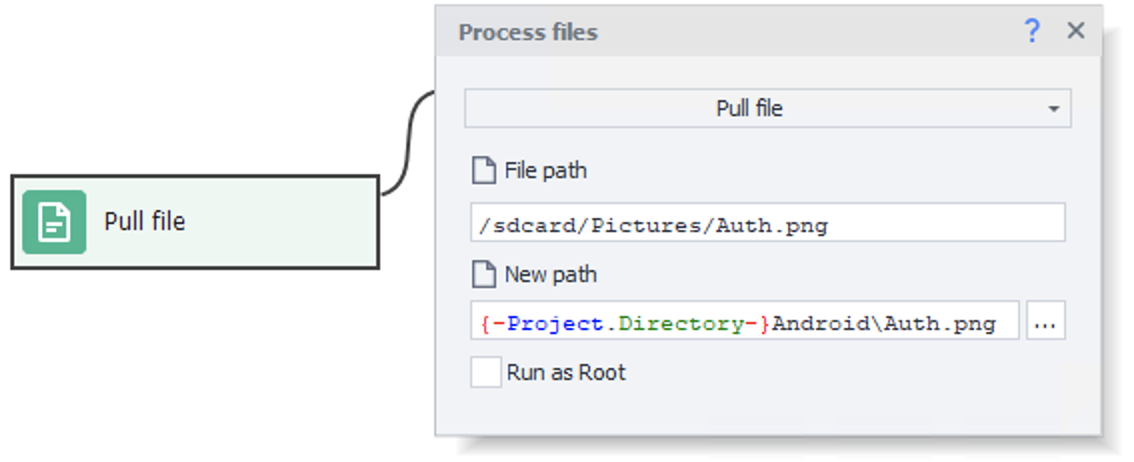
Available options:
- File path. The full path to the file on your smartphone.
- New path. Where on your computer you want this file to go.
Again, you can specify the full path, with the file name right away, likec:\Images\pic.png, or just pick a folder:c:\Images\. In the second case, the file will be copied with its original name. - Run as Root. This setting is needed to receive files from folders that require superuser access.
When receiving a file from such folders, a message containingPermission deniedorNo such file or directoryis displayed. However, if the file is received without errors even when this setting is disabled, it is strongly not recommended to enable this setting.